Transferring your LINE account between iPhones
Share


Copied
By transferring your LINE account, you can continue using LINE with the same account
even when switching devices or experiencing technical issues with your device.
This Help article is about
transferring LINE accounts between iPhones.
For information on how to transfer your account in a
different situation, see the LINE account transfer guide.
Useful info
Account transfer process
Transferring your LINE account is done in the order numbered below.
Attention
- Prepare to transfer your LINE account before you begin to avoid the following issues from occurring.
- Not being able to transfer your LINE account
- You transfer your account, but your chat history is not restored
- Prepare to transfer your LINE account (e.g. check your registered information, back up your chat history) on your previous device.
- Check the methods for transferring a LINE account in the section below, and follow the guide that applies to your situation.
If you have your previous device
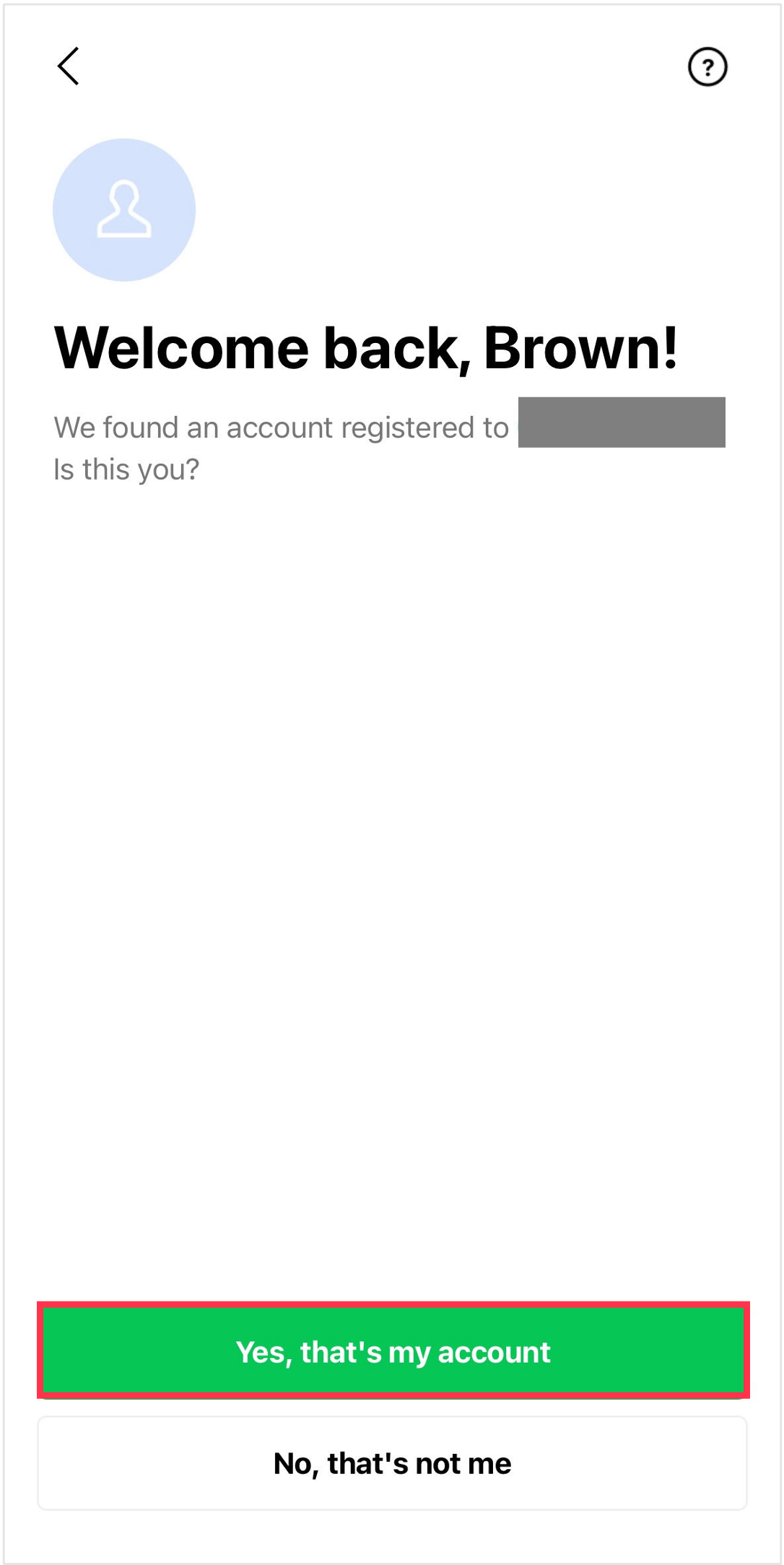
See the "Transfer steps (with Quick Start)" section below
if you see the following screen when you open LINE on your new device.
Note: If you
see a different screen, see the "Transfer steps (when Quick Start is unavailable)" section.
Transfer steps (with Quick Start)
Important: This option is only available if you're using LINE in Hong Kong, Japan, Korea, Taiwan, or Thailand.
Preparations needed to transfer your account with Quick Start
You need to enter your phone number and password to transfer your account with
Quick Start.
If you don't know your registered information on LINE, tap the
Home tab >  > Account to check.
For other ways to change your
info, see Checking/changing your phone number and Registering/checking/changing your email address and
password.
Transferring your account with Quick Start
- Have both your old device and new device ready.
- Set up your new device with Quick Start.
- Open LINE on your new device.
- Tap Verify.
- Enter your phone number.
- Enter the verification code sent in the text message.
- Enter your password.
Note: If you encounter any issues with Quick Start, please contact Apple Support.
Transfer steps (when Quick Start is unavailable)
What you actually see on your smartphone may vary from the
contents of this page.
When transferring your account, please follow what you see
on your smartphone.
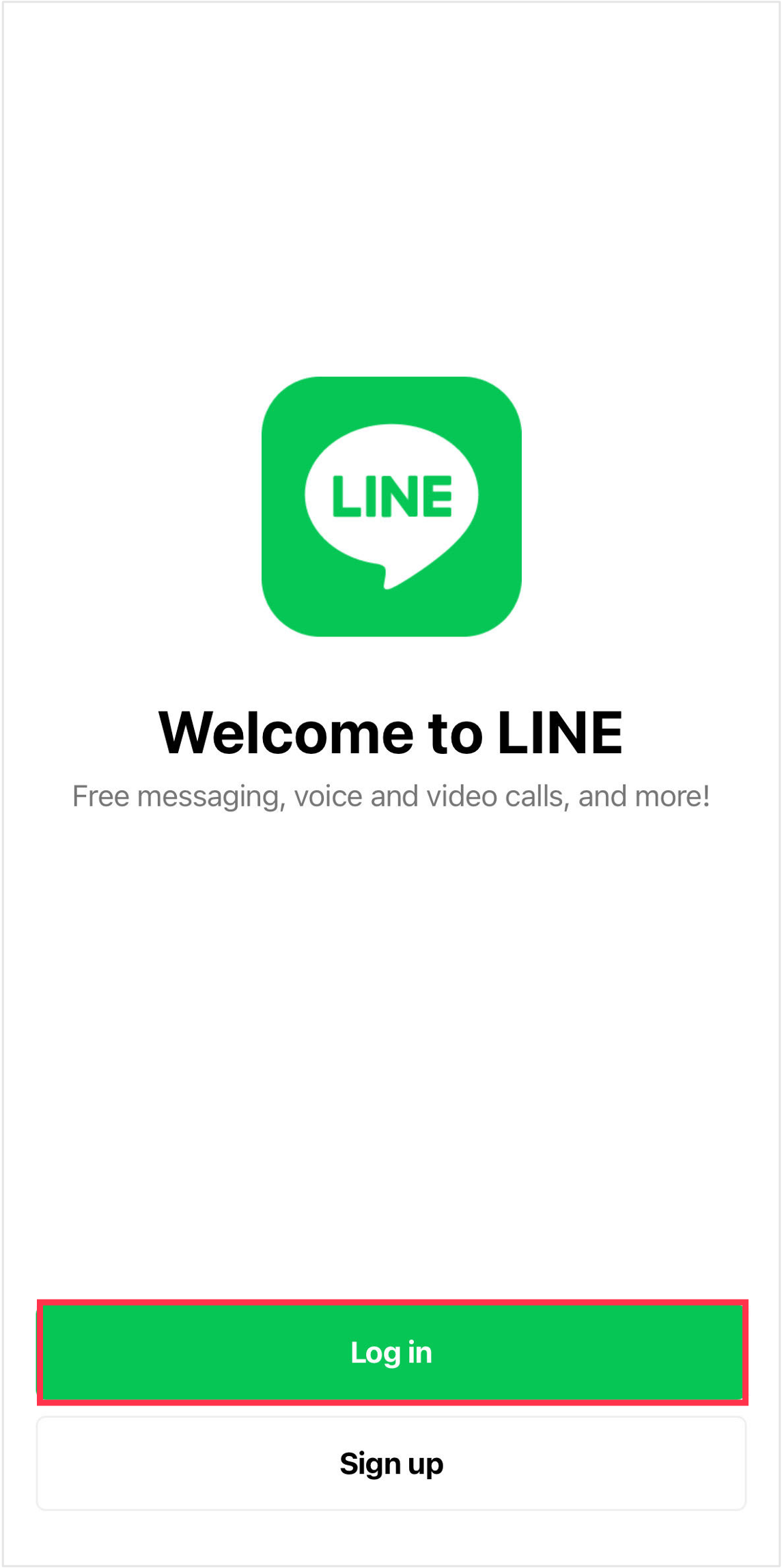
1. Open LINE on your new device
Open LINE on your new device and tap Log in.
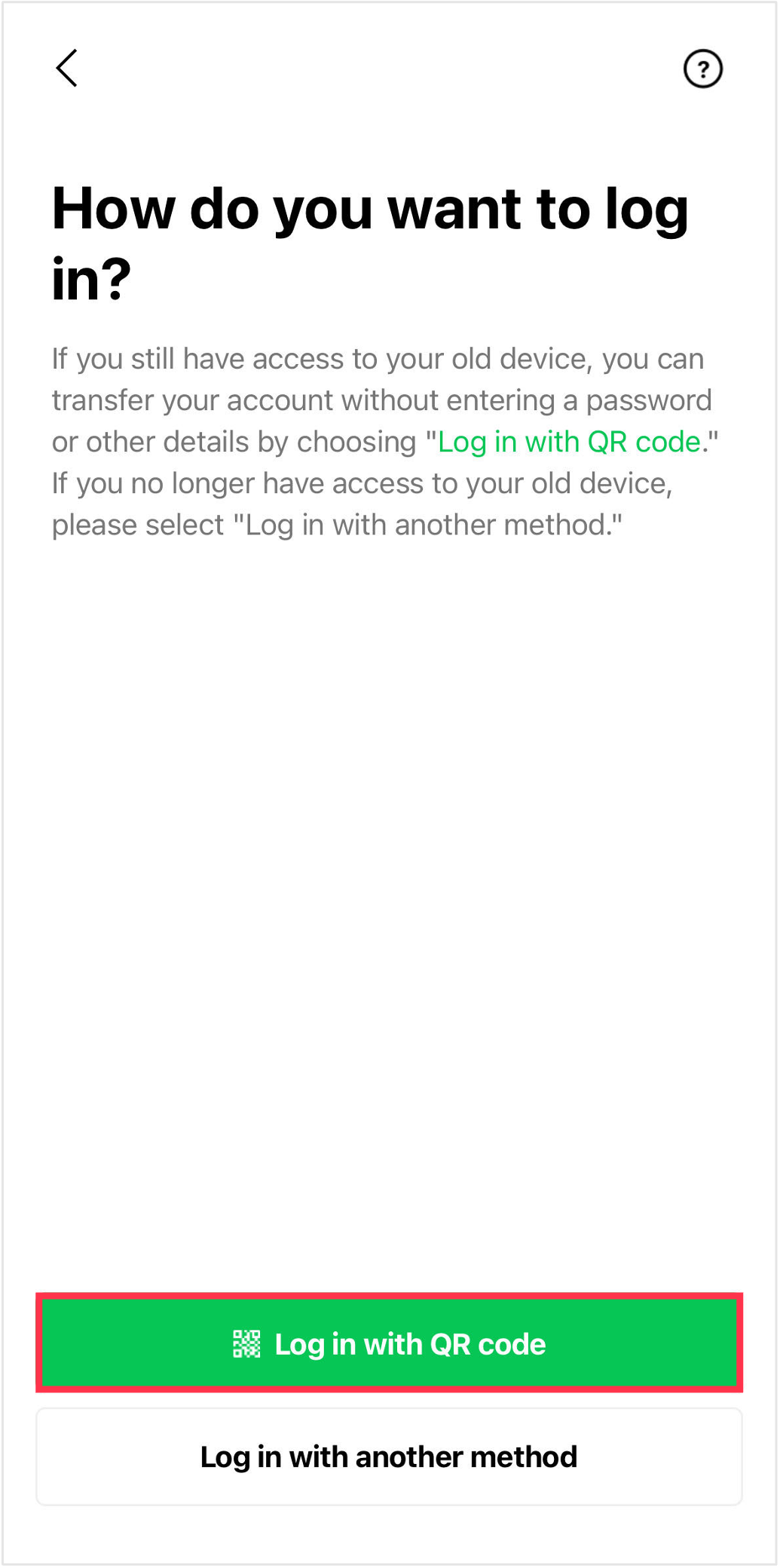
2. Tap Log in with QR Code, then scan it
To transfer your account with a QR code, see the steps below.
From the menu
that appears, tap Log in with QR code > Scan QR code.
Note: We recommend
transferring your account with a QR code because it allows you to skip entering
your password or PIN code in the later steps.
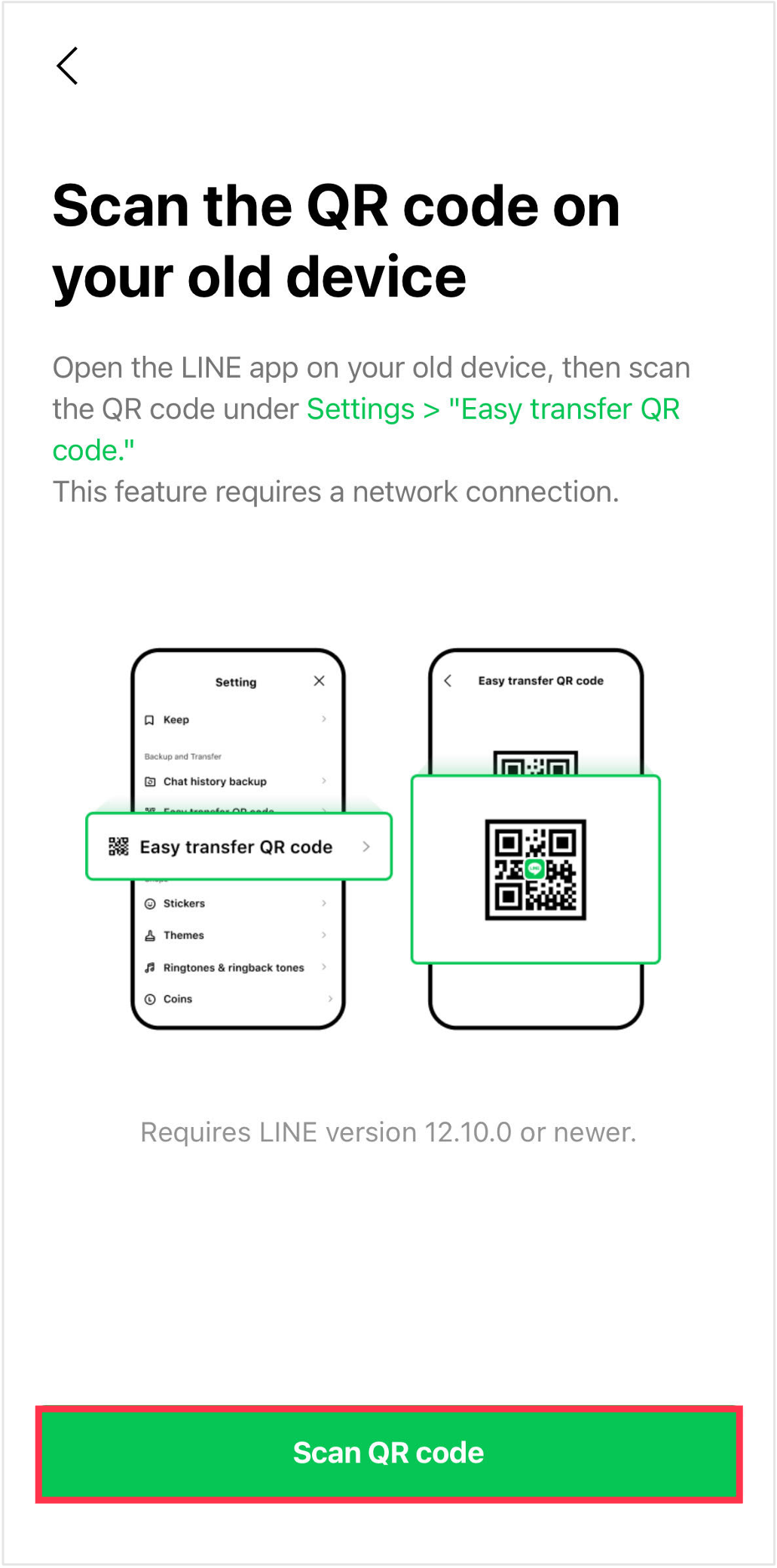
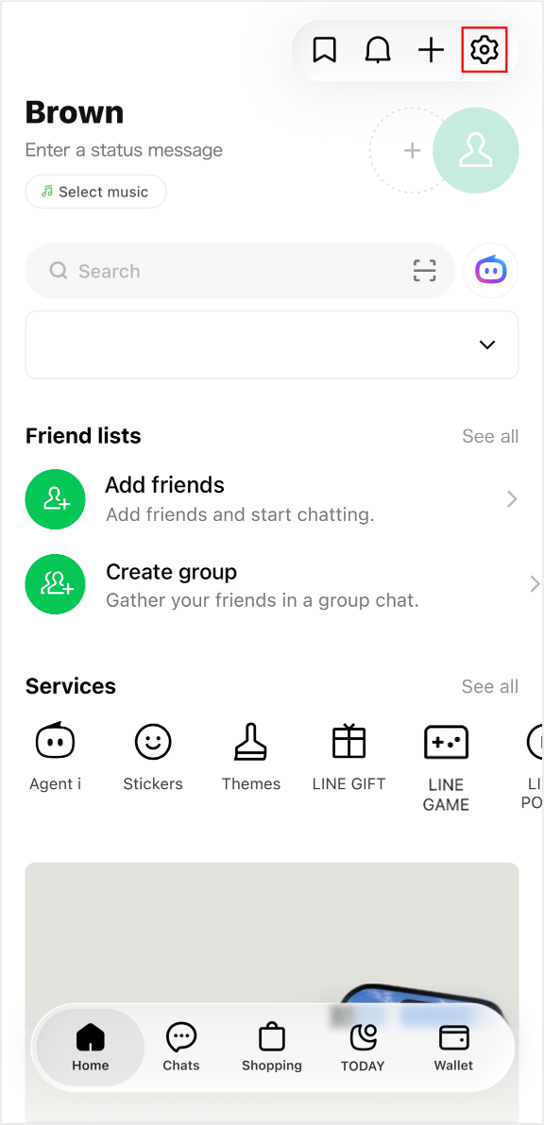
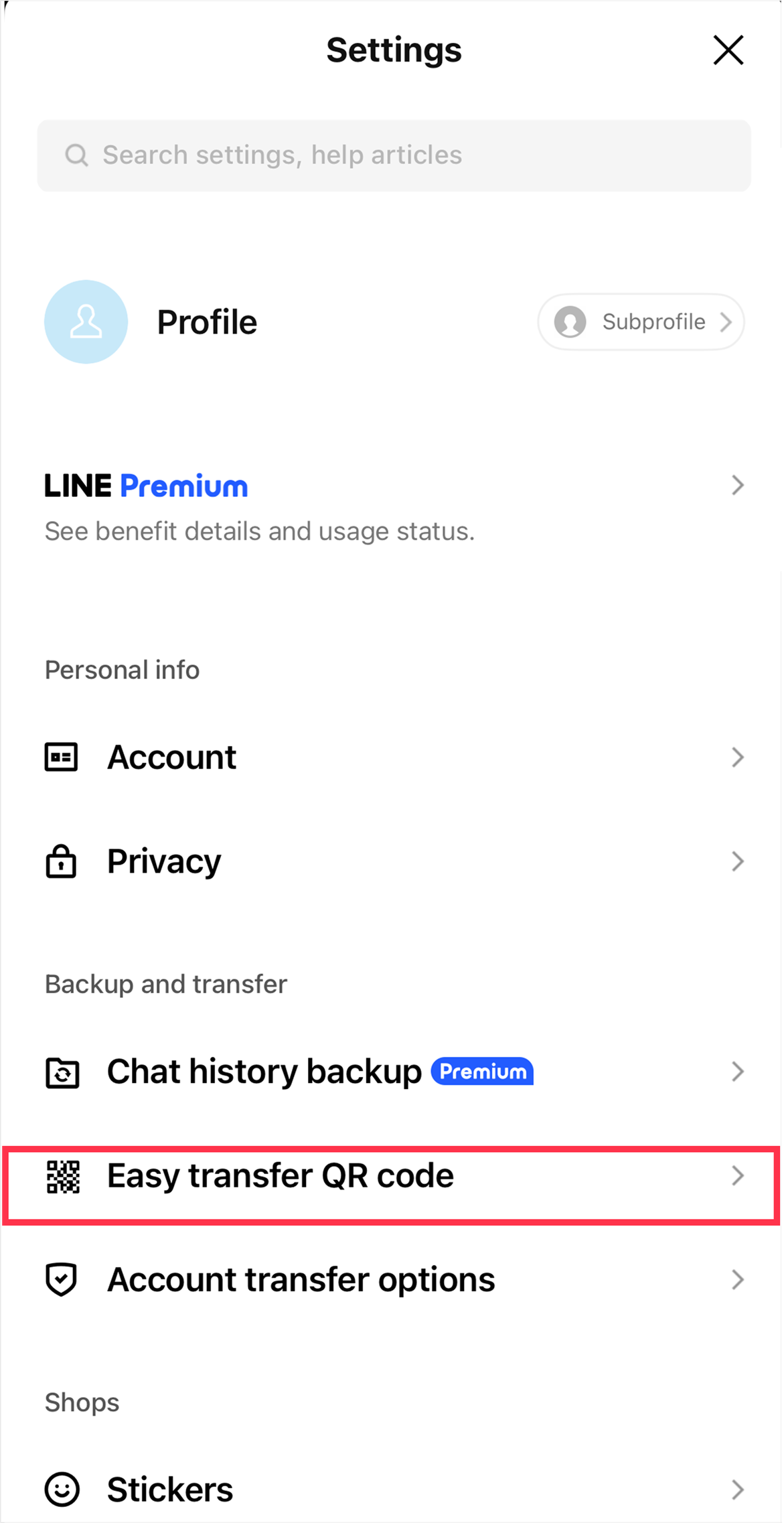
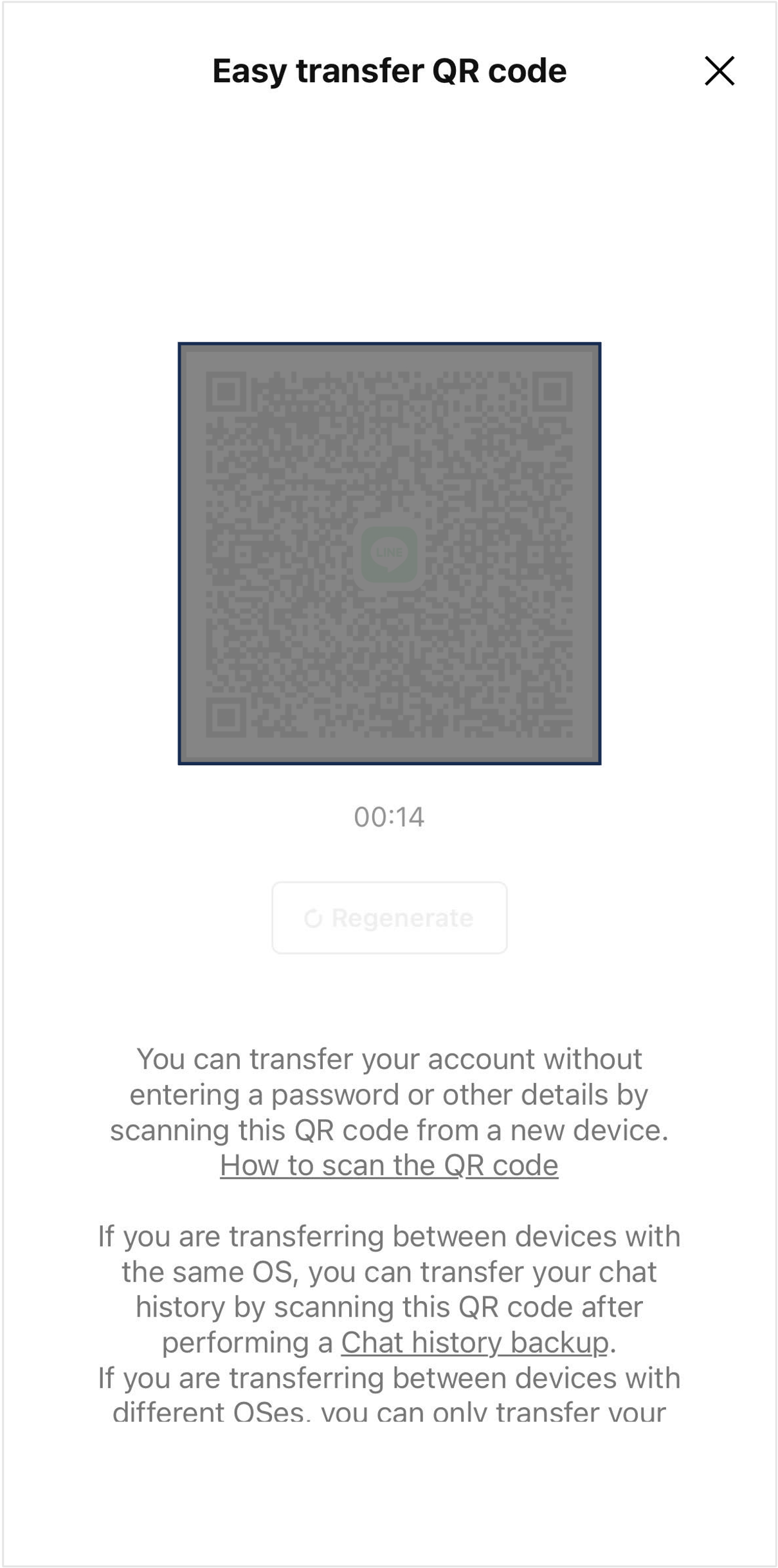
3. Display your QR code on your previous device
Open LINE on your previous device, and tap the Home tab > > Easy
transfer QR code to display your QR code.
Note:
- If you haven't yet backed up your chat history, see the "4. Back up your chat
history" section in Preparing to transfer your LINE account.
- You cannot back up your data after this step.
- If a QR code isn't shown,
check if LINE has been updated to the latest version.
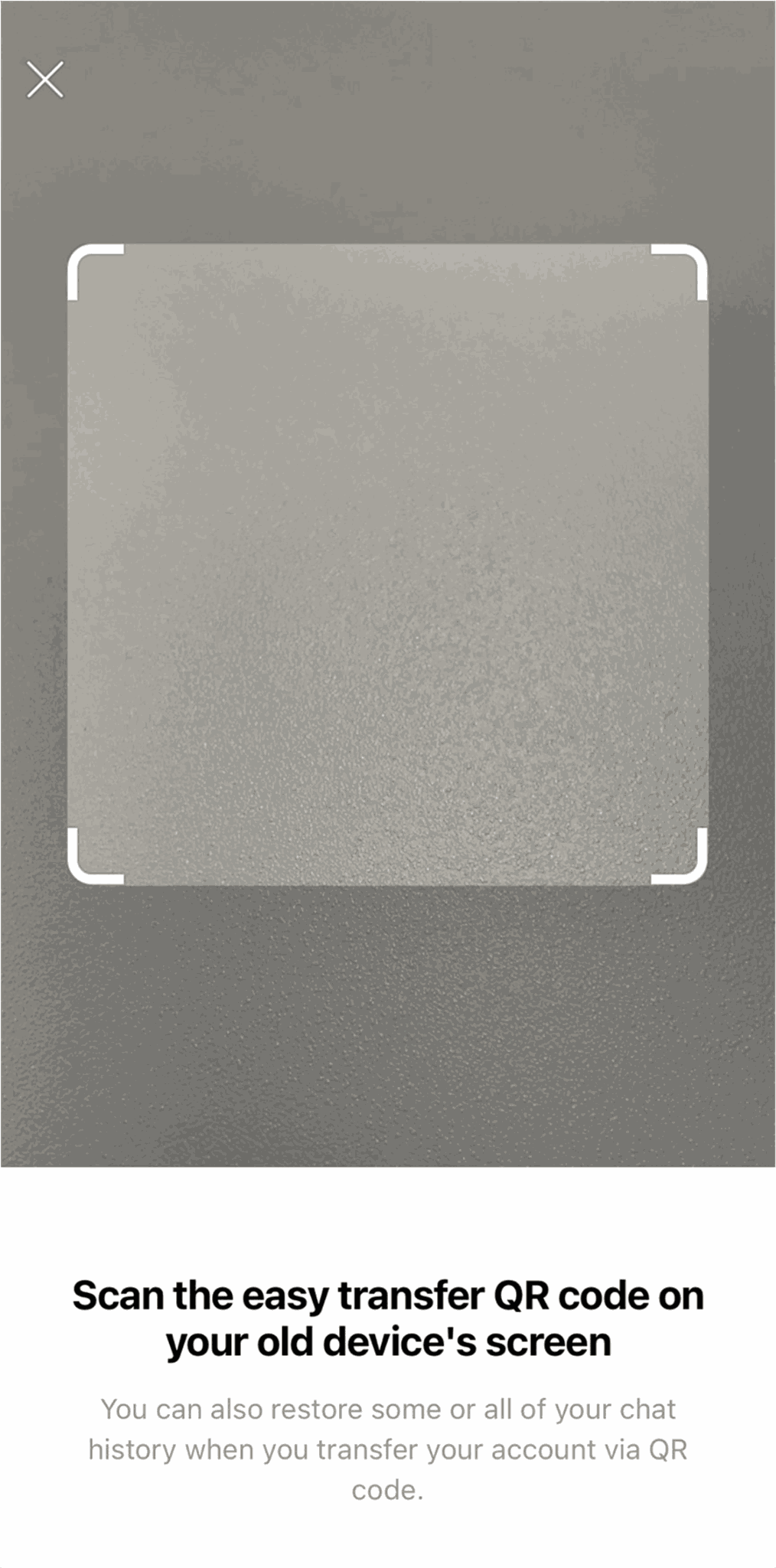
4. Scan the QR code with your new device
Scan the easy transfer QR code you displayed on your previous device with your new device.
5. Verify your identity with your previous device
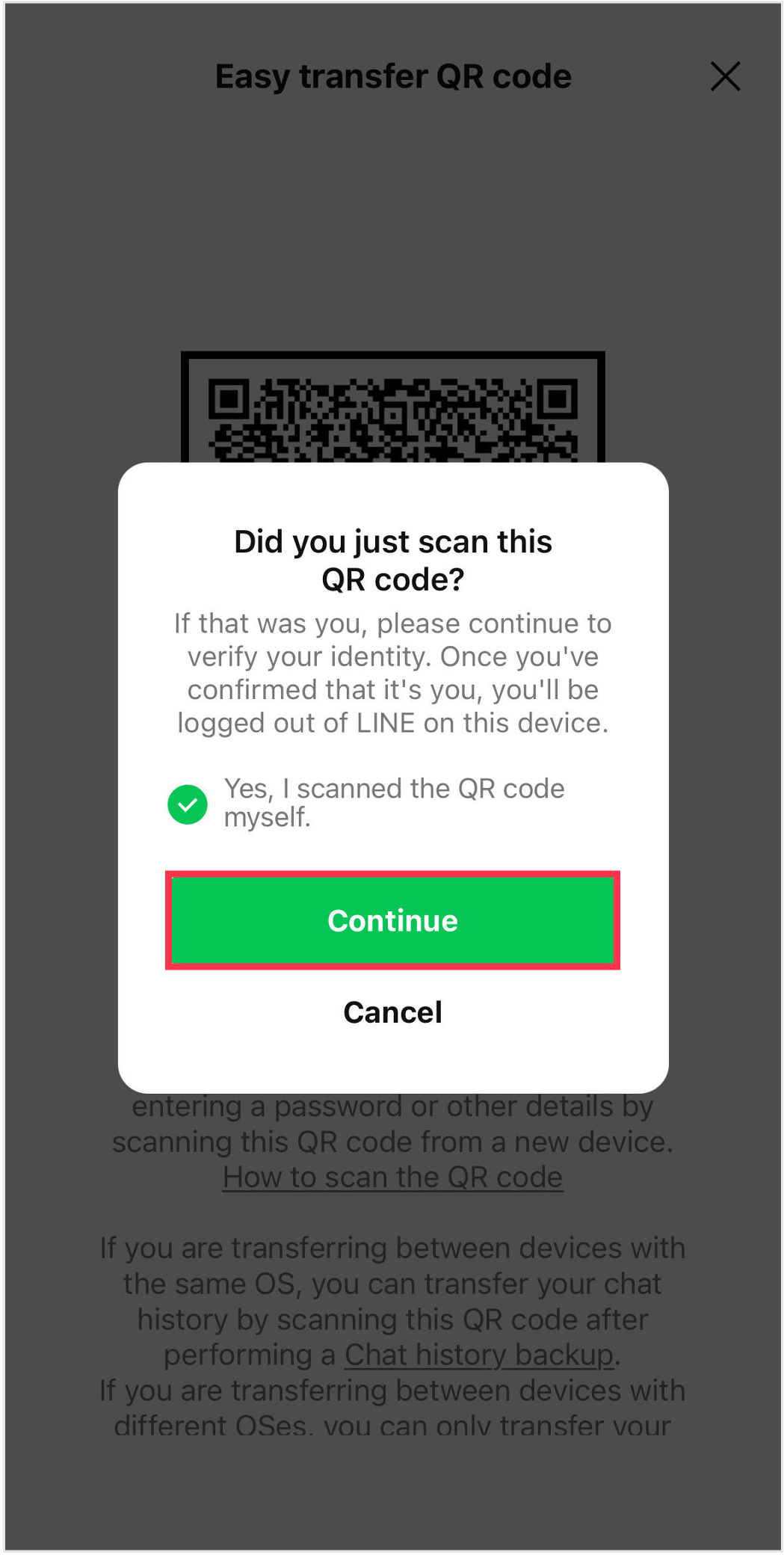
After you scan the QR code, the message "Did you just scan this QR code?" will
appear on your previous device.
If you were the one who scanned it, check
Yes, I scanned the QR code myself, then tap Continue.
After that, verify your identity with
the method you use to unlock your lock screen (e.g. facial recognition,
fingerprint recognition, passcode).
6. Log in on your new device
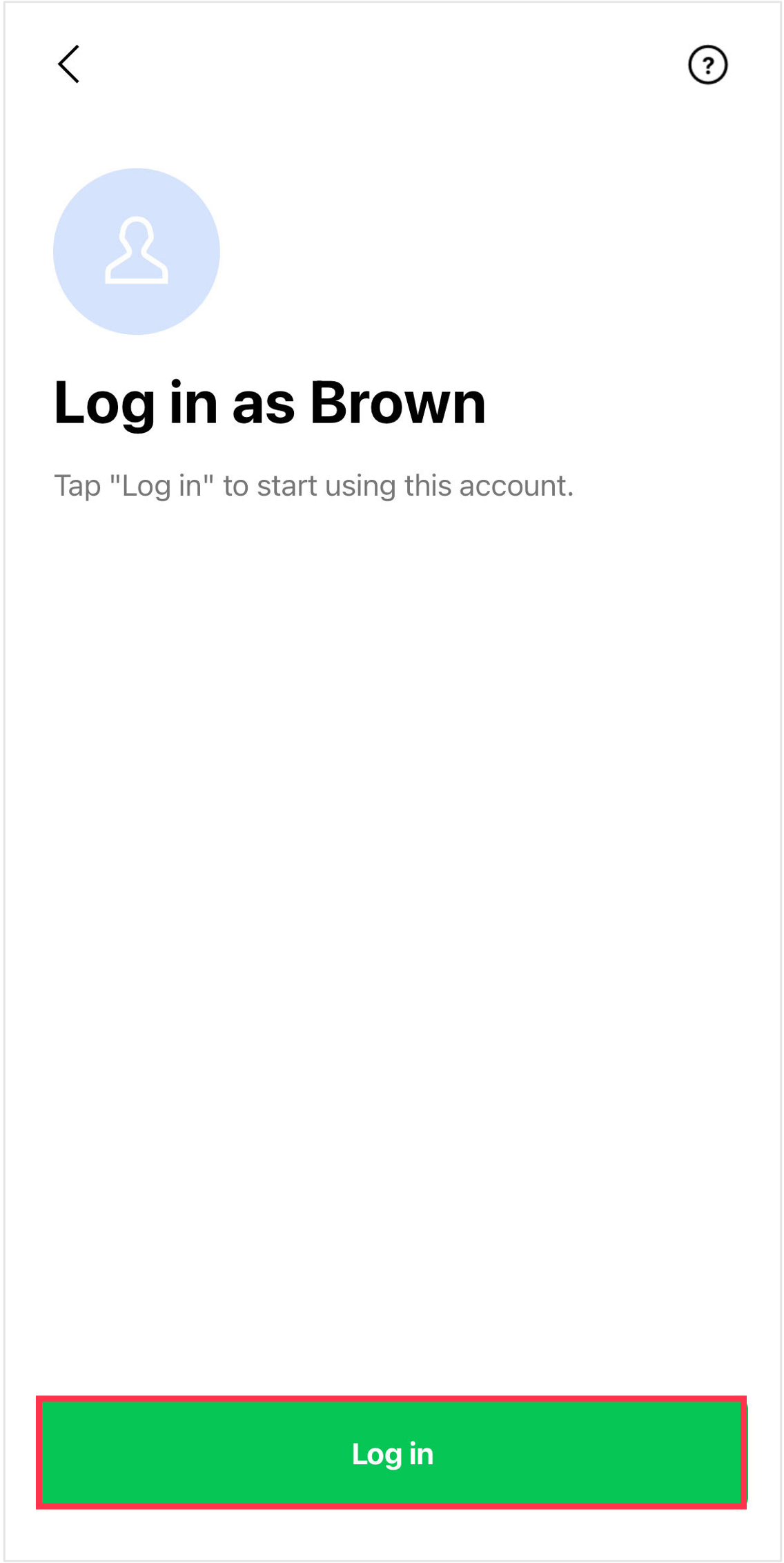
Tap Log in on your new device.
Note:
When you tap Log in on your new device, your
account will be deleted from your previous device.
7. Restore your chat history
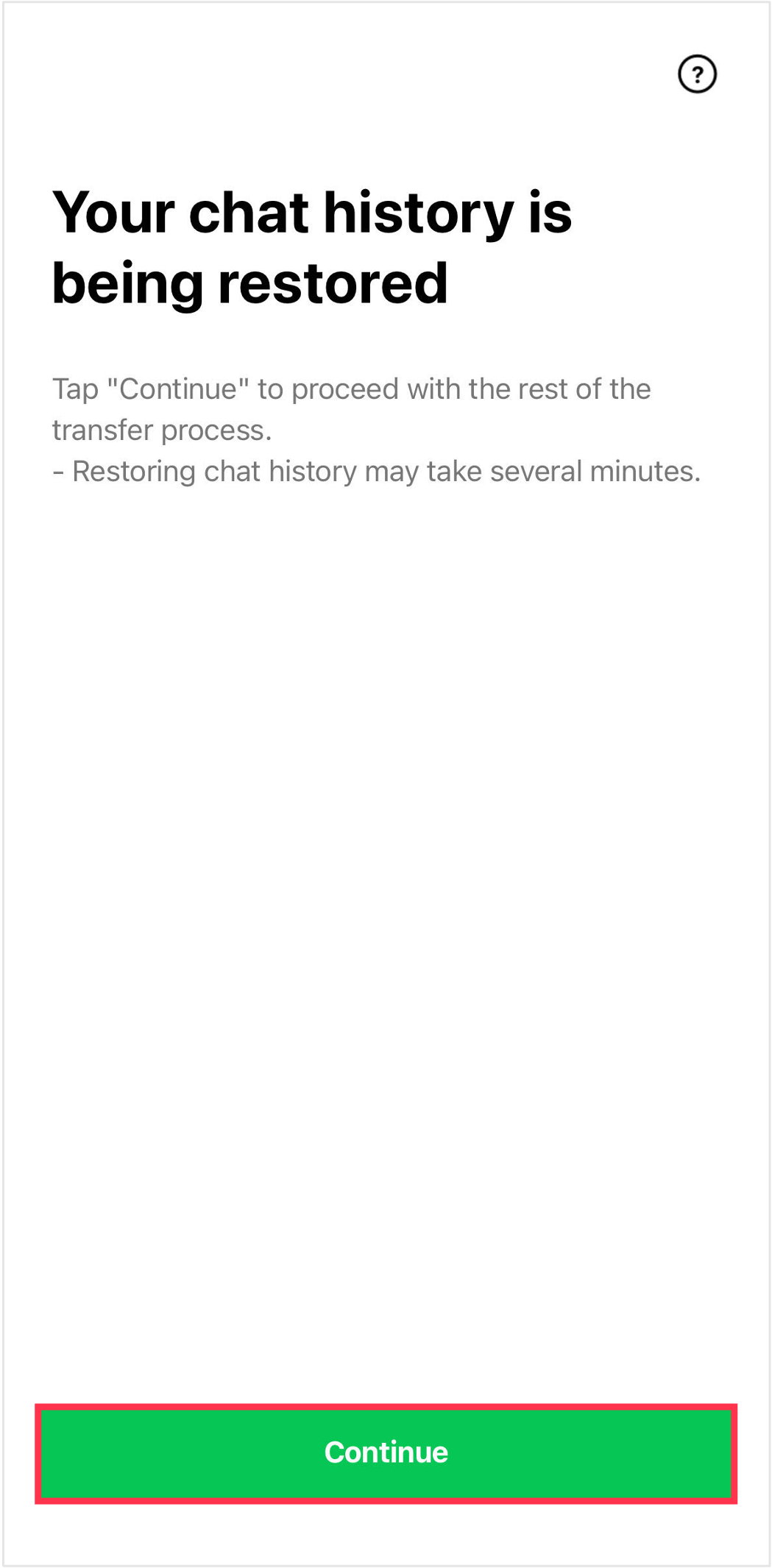
Confirm the details shown, then tap Continue
to restore your chat history.
Please be aware that once you tap Continue, LINE will become unavailable on your
previous device.
8. Proceed through each step to transfer your account
Proceed through each step while following the onscreen guidance shown on your new
device.
When you see the Home screen, your LINE account has been
transferred.
Note: If you're in Hong Kong, Japan, Korea, Taiwan, or
Thailand and you changed your phone number as well as your device, you'll need
to manually update your phone number on the LINE Settings screen
after transferring your account.
If you don't have your previous device
How to transfer your account
What you actually see on your smartphone may vary from the contents of this page.
When transferring
your account, please follow what you see on your smartphone.
1. Open LINE on your new device
Open LINE on your new device and tap Log in.
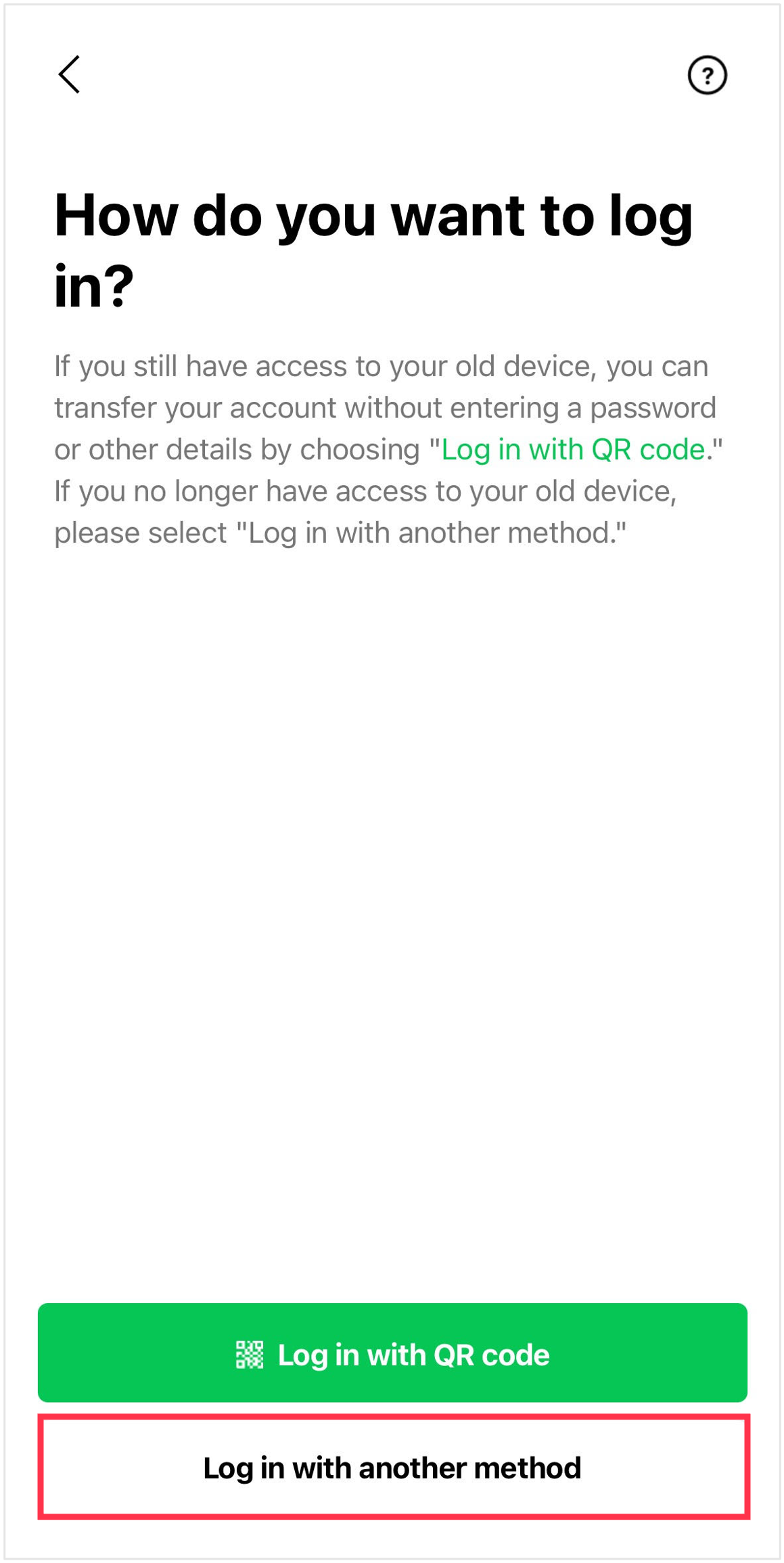
2. Tap Log in with another method
This step explains how to log in with a passkey.
Note:
- You can use the passkey feature with LINE version 26.17.0 or later. (Update the LINE app to the latest version.)
- To transfer your account with a passkey, you need to register a passkey with the LINE account you were using and be
logged in with the same Apple ID on your new device.
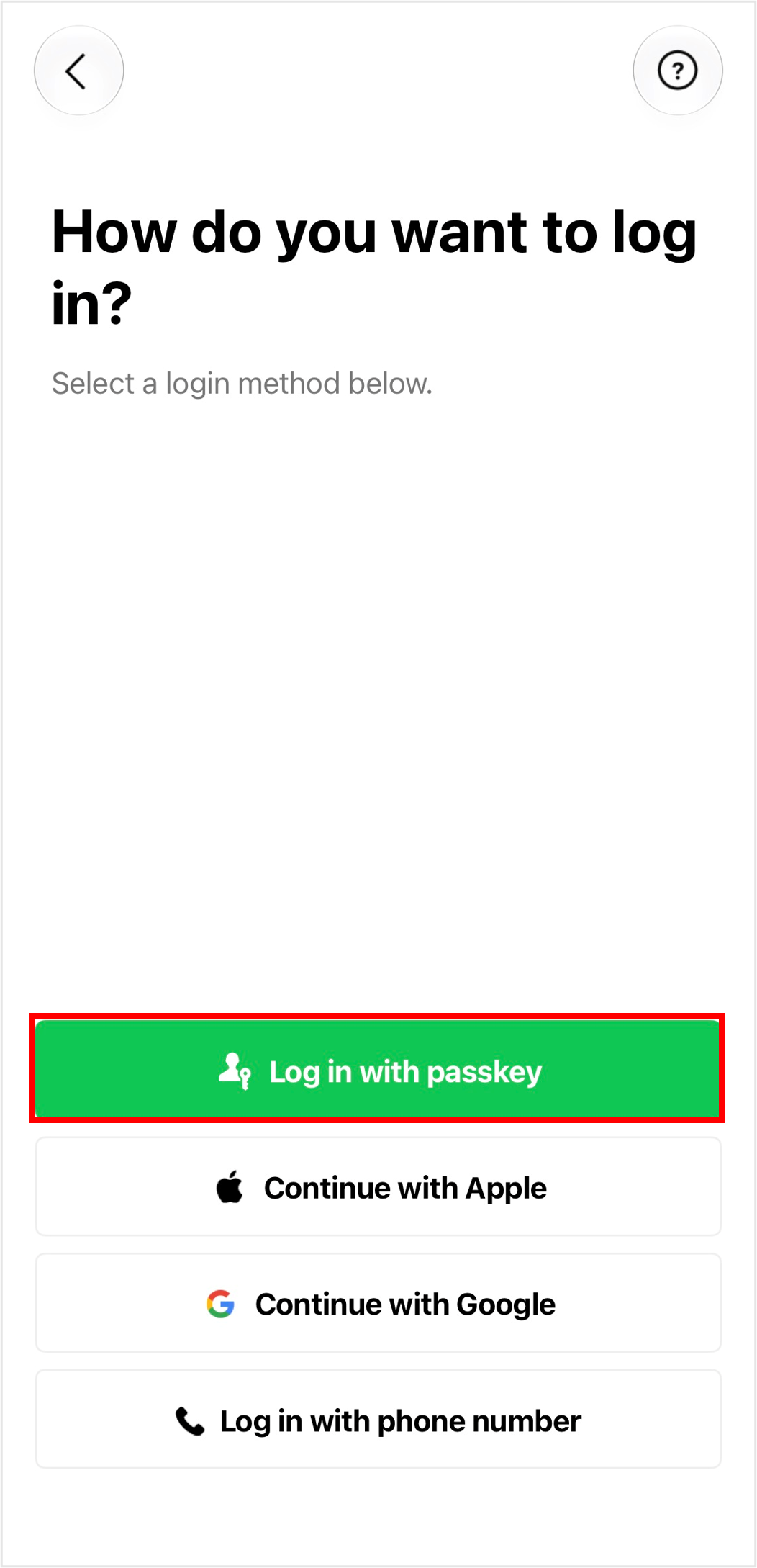
From the menu shown, tap Log in with another method > Log in with passkey.
Note:
- If you are transferring your LINE account with a phone
number, see Transferring your LINE account with a phone number.
- If you are transferring
your LINE account with an Apple ID/Google account, see Transferring your
LINE account with your Apple ID/Google account.
- You can no longer use Facebook to log in as
of mid-January 2024.
3. Log in with passkey
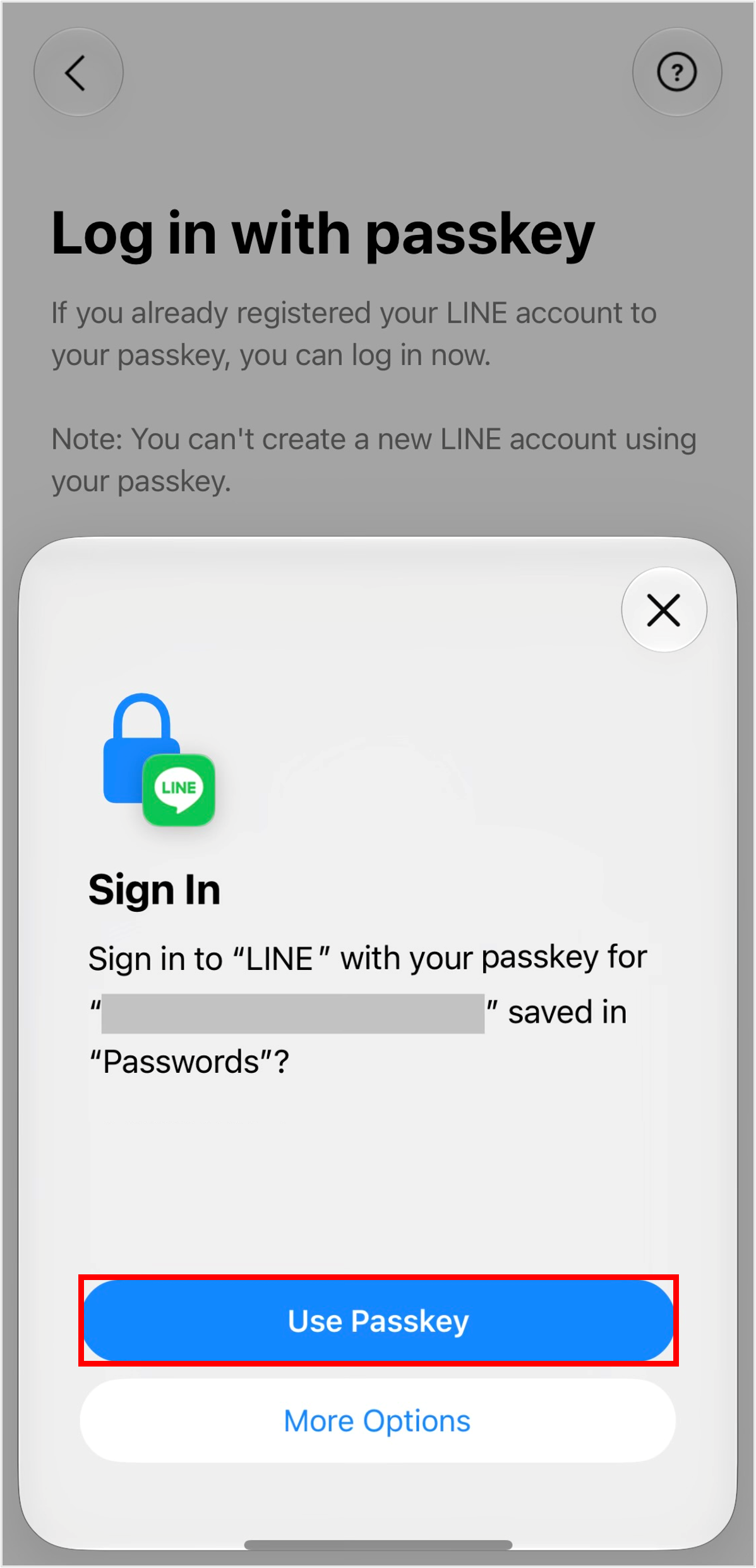
Log in with the passkey you registered on LINE.
Tap Continue with
passkey, and then after checking the passkey information, tap Use
Passkey.
On the next screen, sign in using the passcode or biometric information
(fingerprint or face) configured on your device.

4. Confirm that the information shown is yours
Confirm that the correct information is shown.
If the information is correct,
tap Log in and proceed to the next step.

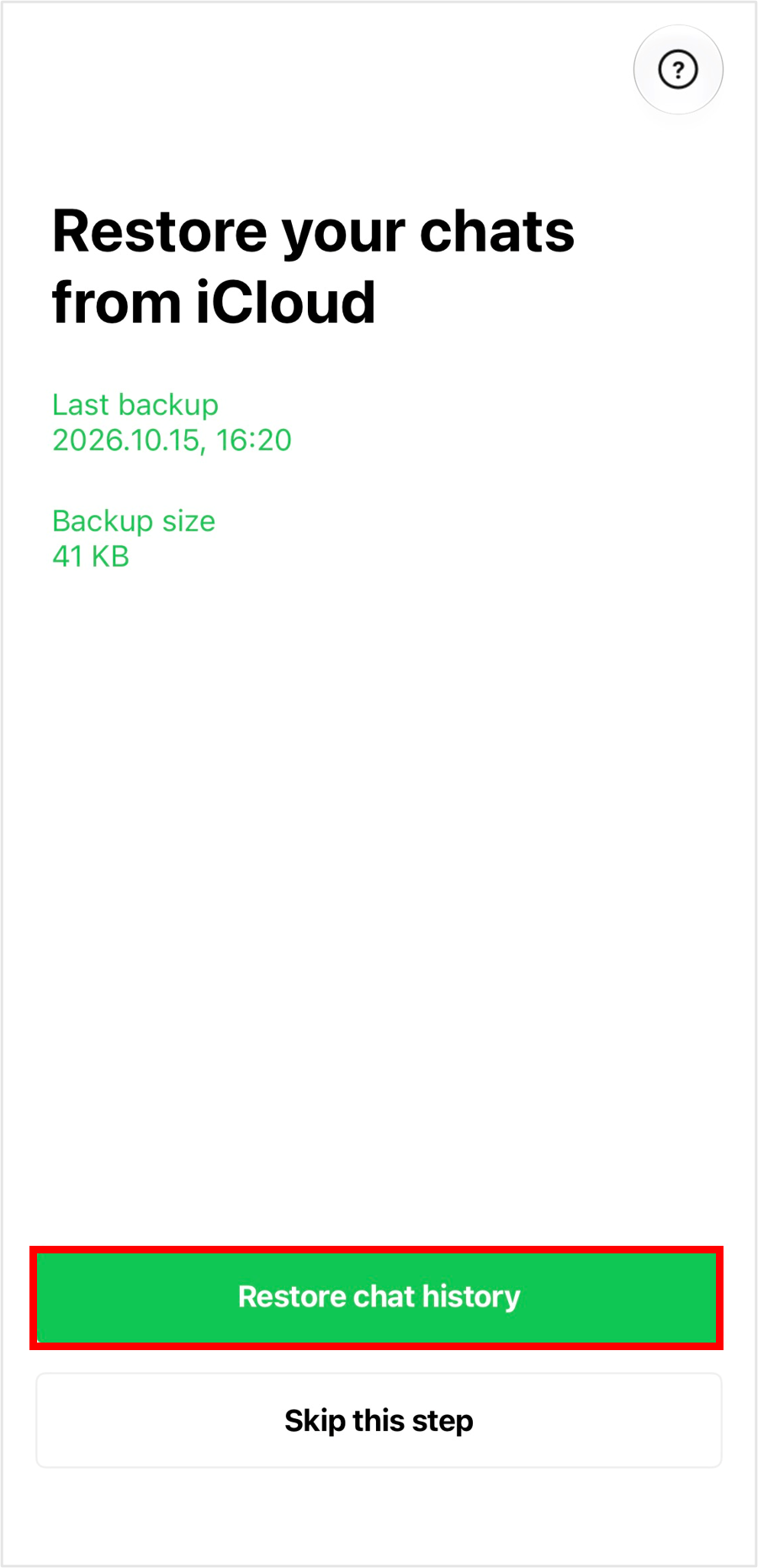
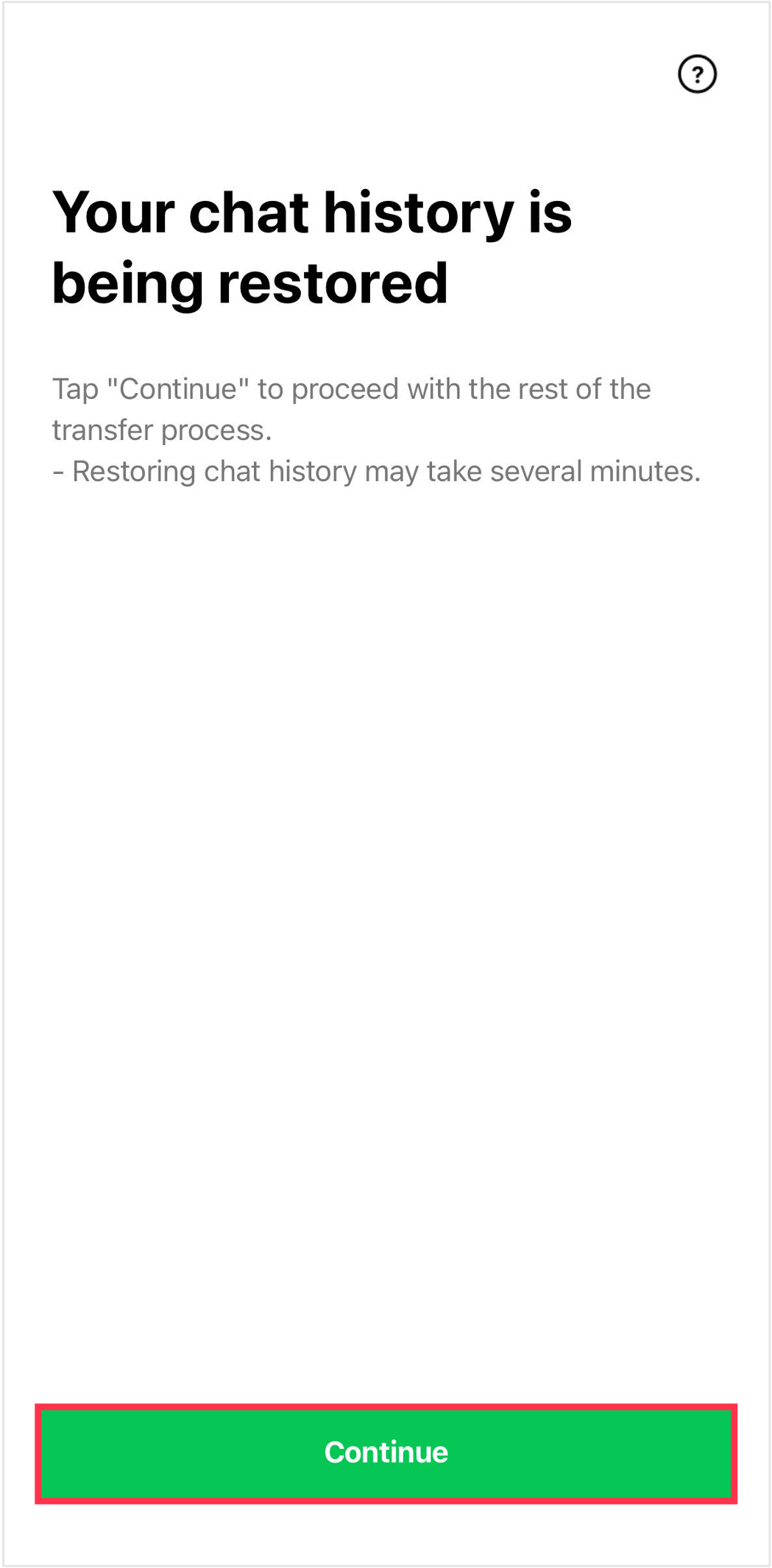
5. Restore your chat history
Confirm the details shown, then tap Restore chat
history.
Please be aware that once you tap Restore chat
history, LINE will become unavailable on your previous device.
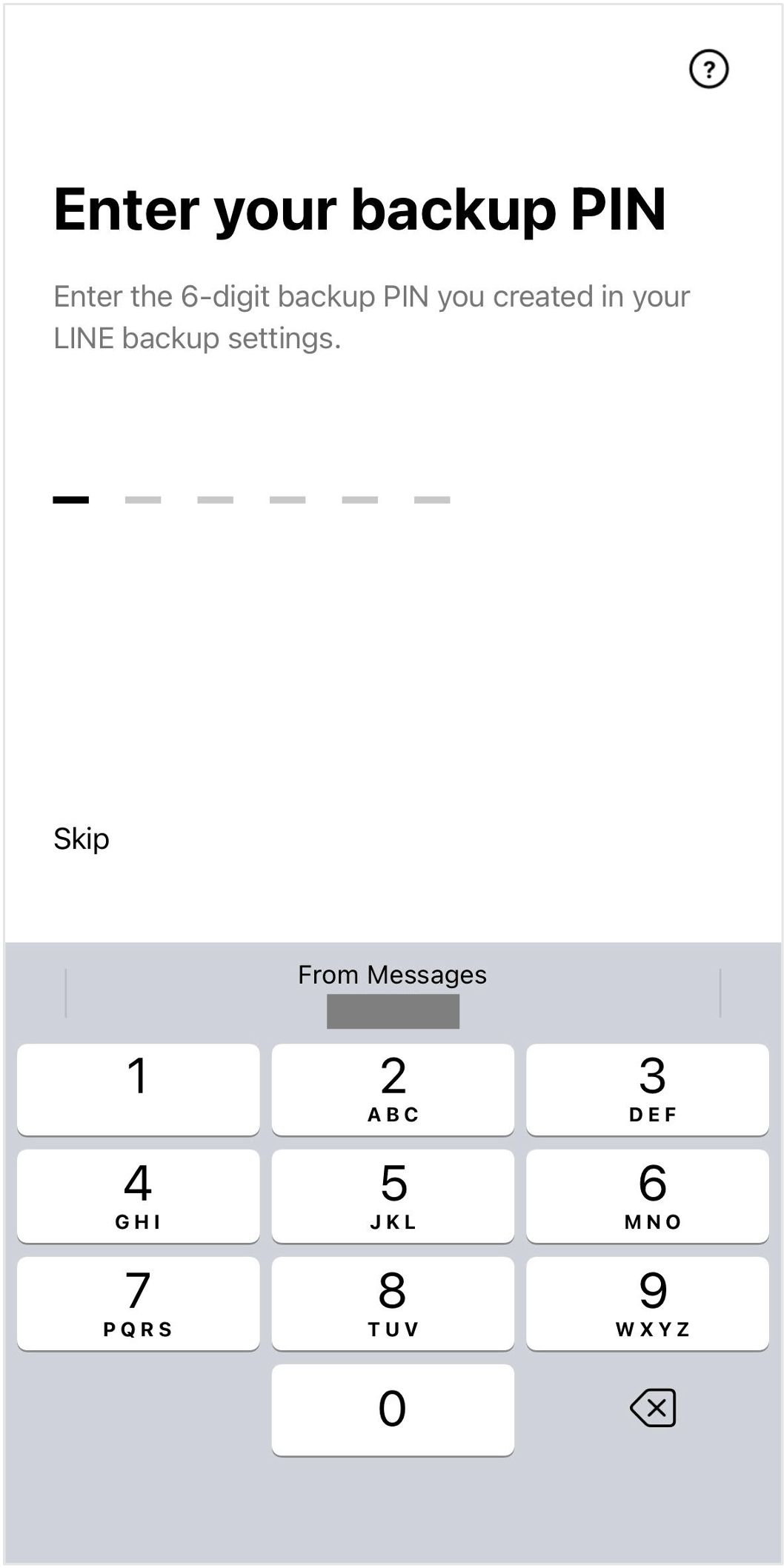
6. Enter your backup PIN
If you set a backup PIN in advance, enter it.
If your PIN is correct, you'll restore the last 14
days of your chat history.
Note: If you didn't previously set a backup PIN, the backup PIN entry screen won't be shown.
7. Proceed through each step to transfer your account
Proceed through each step while following the onscreen guidance shown on your new device.
When
you see the Home screen, your LINE account has been transferred.