Logging in/out of LINE on your sub device (iPad/Android device)
Share


Copied
You can use the LINE account created on your main device to log in to an iPad or Android device as a sub device.
Useful info
- You can also use your PC as a sub device.
Logging in to LINE on your sub device
You can log in to LINE on a sub device with the following methods.
Logging in with an email address
Enter your email address and password to log in.
Note: You may be asked to enter a verification code on your main device when you log in to LINE for the first time on a sub device.
- Register an email address on your main device.
- Start LINE for iPad.
- Tap Other ways to log in > Log in
with email.
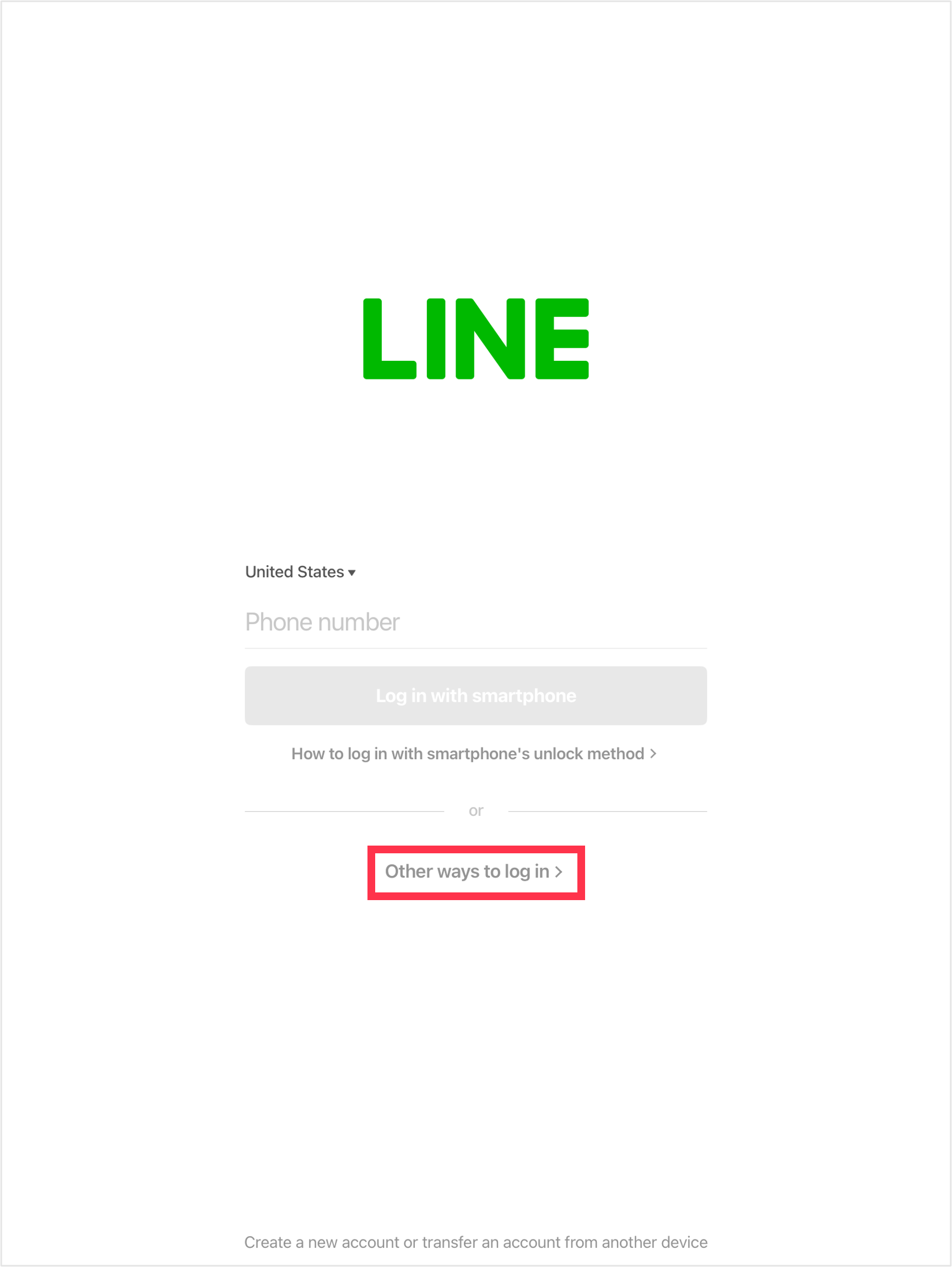
- Enter your registered email address and password, then tap Log in.
- Register an email address on your main device.
- Start LINE on your sub device.
- Tap Log in > Sub device
> OK > Log in with
email.
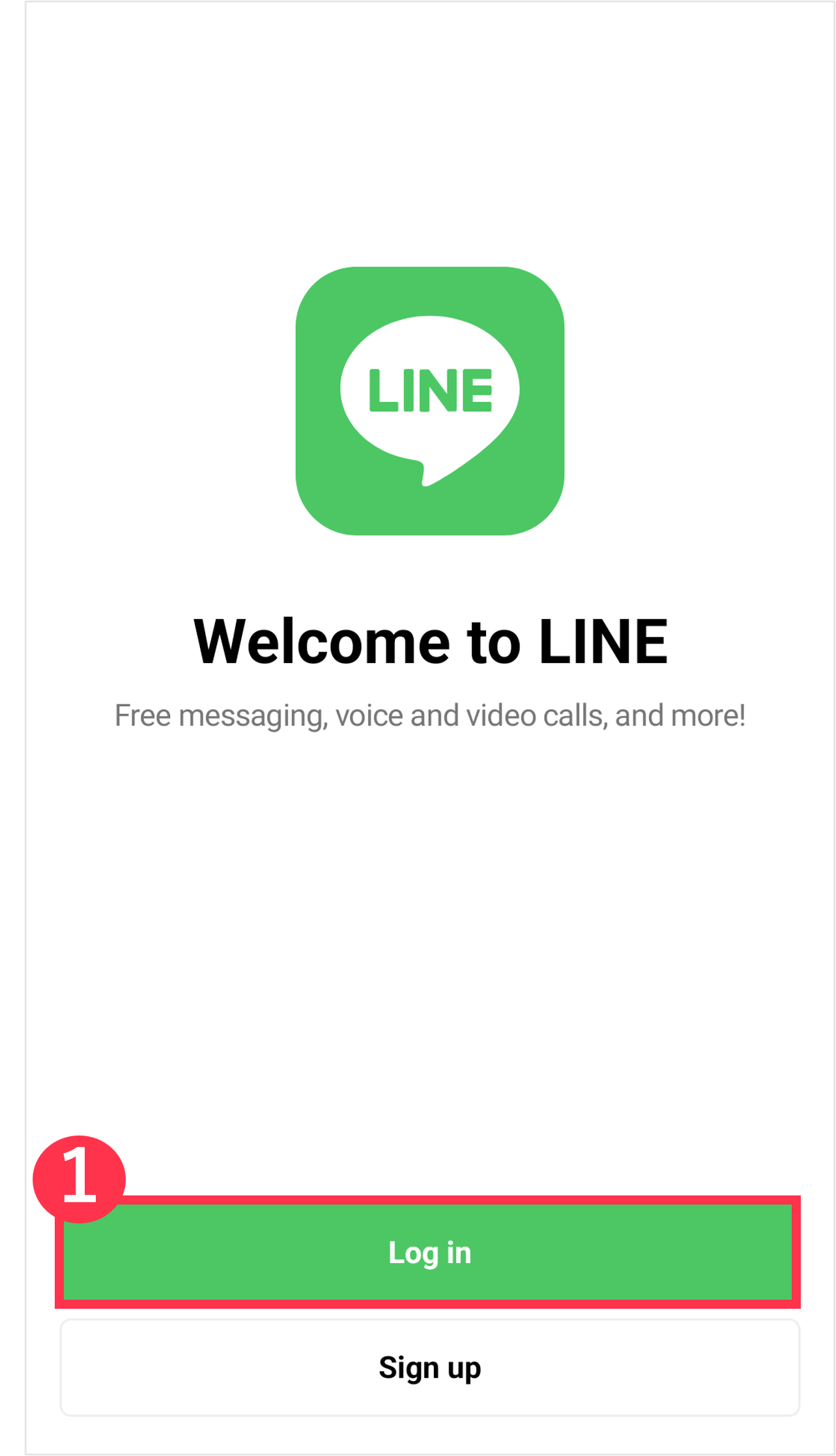
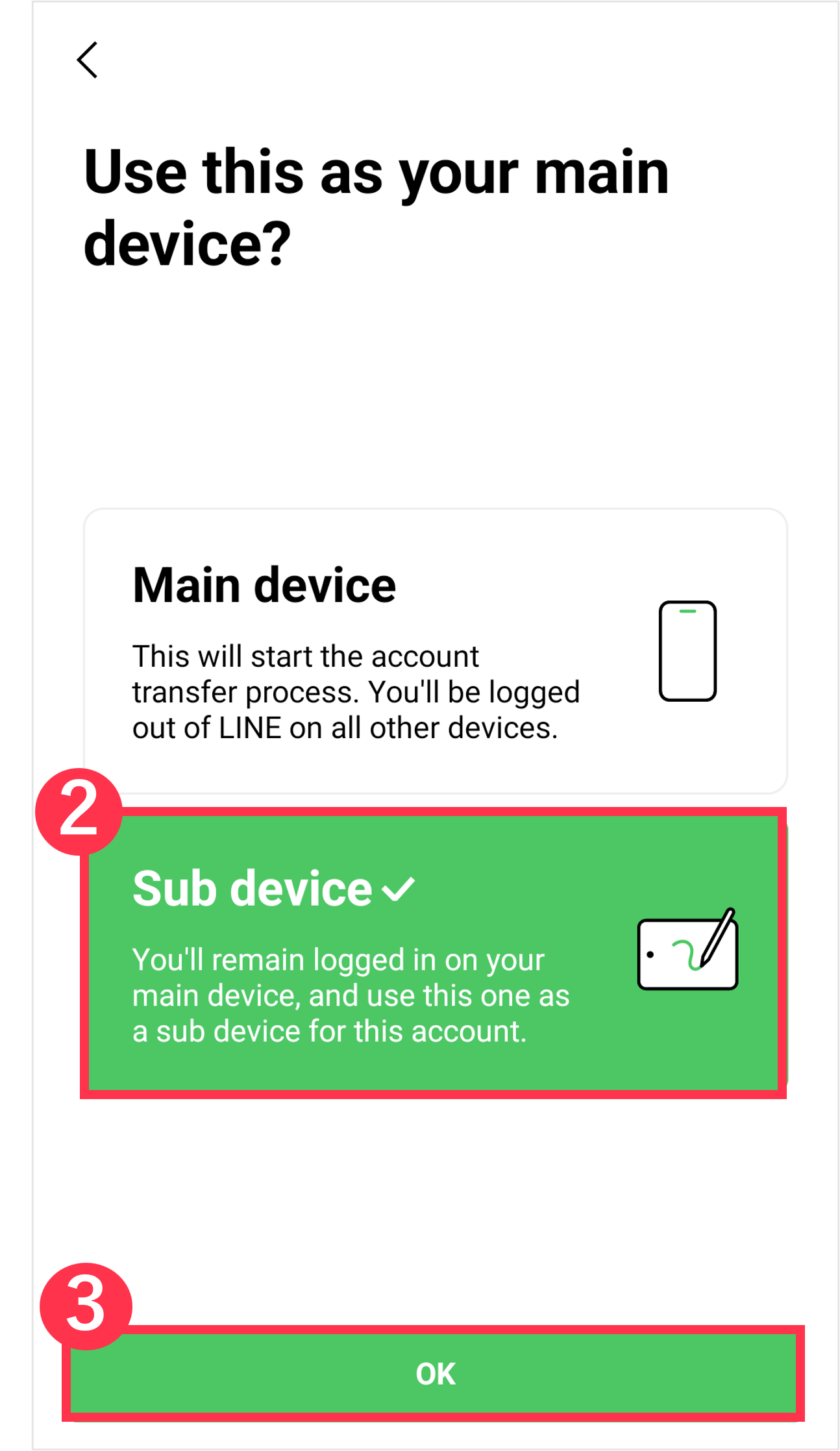
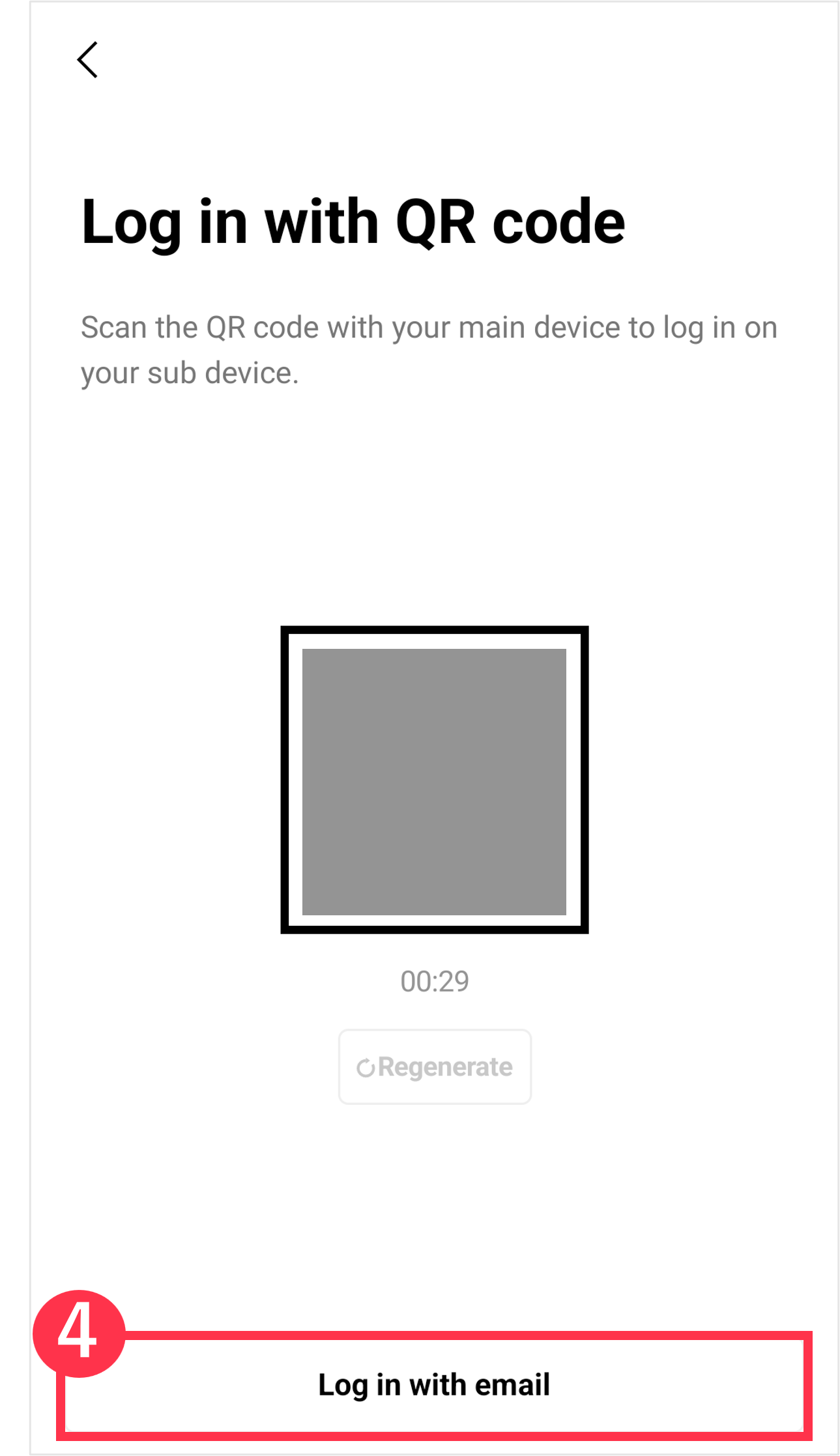
- Enter your registered email address and password, then tap
 .
.
Logging in with a QR code
Scan the QR code that appears on a sub device using your main device to log in.
Note: You may be asked to enter a verification code on your main device when you log in to LINE for the first time on a sub device.
- Start LINE for iPad.
- Select Other ways to log in.
- Start the QR code reader on your main device and scan the QR code that appears on your iPad.
- On your main device, tap Log in > Verify.
- Start LINE on your sub device.
- Tap Log in > Sub device
> OK.
- Start the QR code reader on your main device and scan the QR code that appears on your sub device.
- On your main device, tap Log in > Verify.
Useful info
- The location (e.g. prefecture, city) that appears on the login screen is based on the IP address of the device (e.g. PC, iPad) that is trying to log in to your account.
- If the QR code expires,
tap
 and log in from the updated QR code.
Logging in with biometric information
Use your biometric information (e.g. face, fingerprint) to log in. For the requirements and preparations for logging in with biometric information, see How logins with biometric information work.
Verification when logging in to a sub device
You may be asked to enter a verification code on your main device when you log in to LINE for the first time on a sub device.
- Start LINE on your sub device.
- Start LINE on your main device and you will be asked to enter a verification code.
Note: If you don't see the verification code entry screen, the following actions are not necessary. - Enter the verification code that appears on your sub device into your main device.
- Confirm that the device you are trying to log in with is correct, and check the box.
- Tap Verify.
Be advised
- Enter the verification code that's displayed within three minutes.
- If the screen to enter the verification code doesn't appear on your main device, restart LINE on your main device and try logging in to LINE on your sub device again.
Logging out of LINE on your sub device
- On your sub device, tap
 > Account.
 - iPad: Tap Log out > OK > OK.
Android device: Tap Log out.