Configuring the privacy settings for your wish list
Share


Copied
To configure the privacy settings for your wish list, see the following information.
 Useful info
Publishing your wish list
Users in Japan
1. Open LINE on the main device your LINE account is registered to.2. Tap the Home tab >
 at the top of the screen > Stickers.
3. For iOS: Tap
 at the top left of the screen >
  .
.For Android: Tap
at the top right of the screen >  .
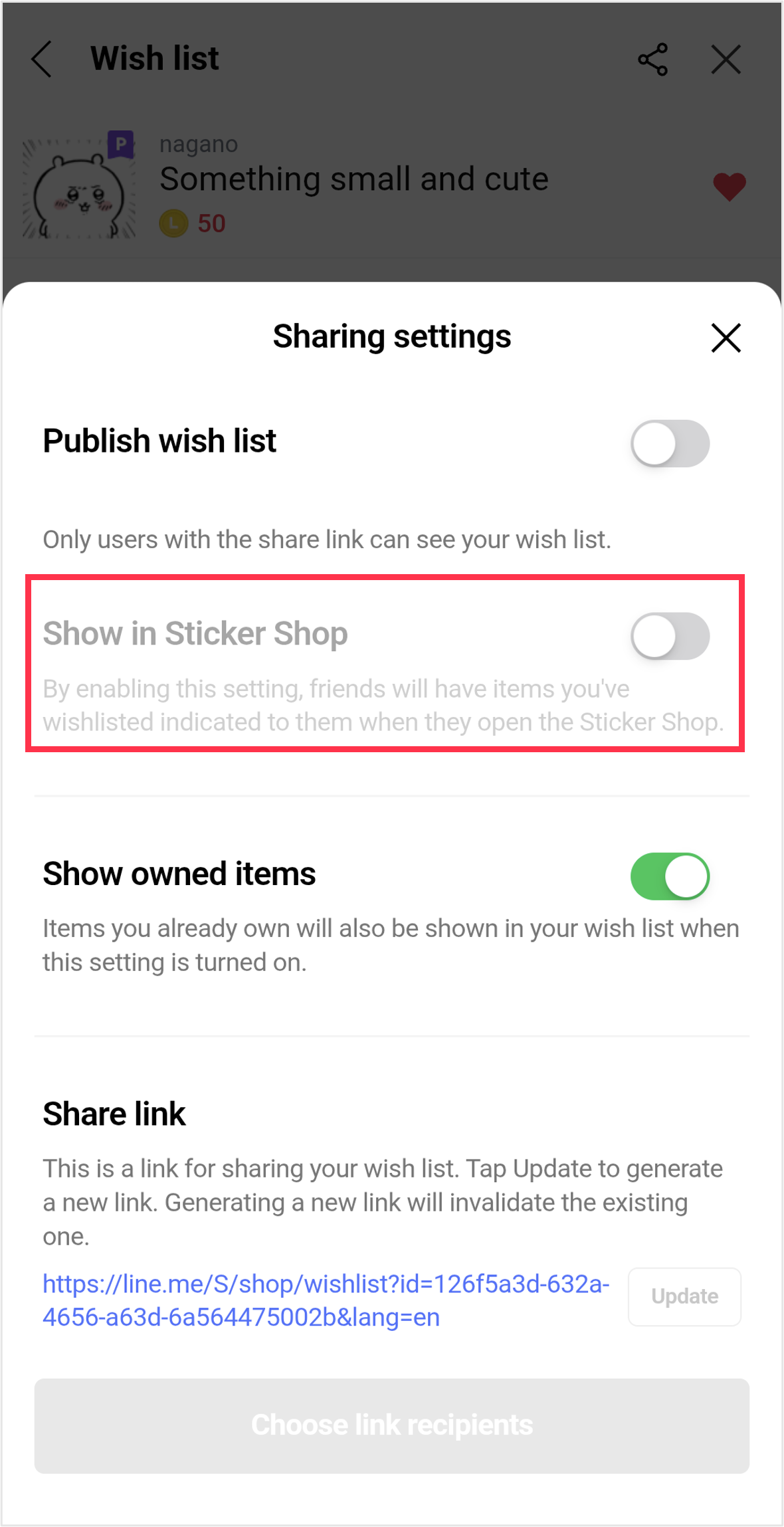
.4. Turn on Publish wish list.
Note:
- You can generate a new link for sharing your wish list by tapping Update under the Share link section.
- You can also turn on or off the Show owned items and Show in Sticker Shop settings.
5. Tap Choose link recipients.
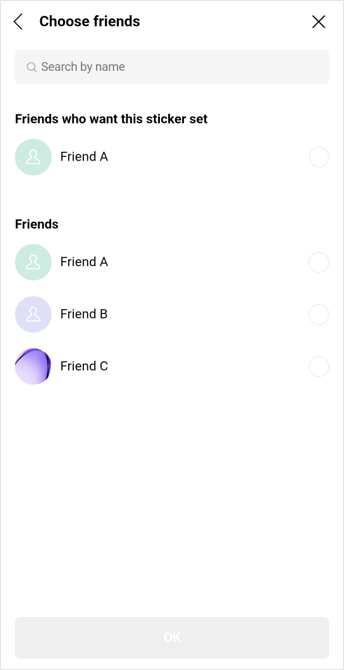
6. Tap the recipients you want to send the link to, or Copy link.
Users outside of Japan
1. Open LINE on the main device your LINE account is registered to.2. Tap the Home tab > Stickers.
3. For iOS: Tap
at the top left of the screen > .For Android: Tap
at the top right of the screen > .4. Turn on Publish wish list.
Note:
- You can generate a new link for sharing your wish list by tapping Update under the Share link section.
- You can also turn on or off the Show owned items and Show in Sticker Shop settings.
5. Tap Choose link recipients.
6. Tap the recipients you want to send the link to, or Copy link.
Useful info
Making your wish list private
Users in Japan
1. Open LINE on the main device your LINE account is registered to.2. Tap the Home tab >
at the top of the screen > Stickers.3. For iOS: Tap
at the top left of the screen > Wish list:Public at the bottom of the
screen.For Android: Tap
at the top right of the screen > Wish list:Public at the bottom of the
screen.4. Turn off Publish wish list.
Users outside of Japan
1. Open LINE on the main device your LINE account is registered to.2. Tap the Home tab > Stickers.
3. For iOS: Tap
at the top left of the screen > Wish list: Public at the bottom of the
screen.For Android: Tap
at the top right of the screen > Wish list: Public at the bottom of the
screen.4. Turn off Publish wish list.