Transferring your LINE account from an iPhone to an Android device
Share


Copied
By transferring your LINE account, you can continue using LINE with the same account even
when switching devices or experiencing technical issues with your device.
This Help article is about
transferring LINE accounts from iPhones to Android devices.
For information on how to transfer your
account in a different situation, see the LINE account transfer guide.
Useful info
Account transfer process
Transferring your LINE account is done in the order numbered below.
Attention
- Prepare to transfer your LINE account before you begin to avoid the following issues from occurring.
- Not being able to transfer your LINE account
- You transfer your account, but your chat history is not restored
- Prepare to transfer your LINE account (e.g. check your registered information, back up your chat history) on your previous device.
- Check the methods for transferring a LINE account in the section below, and follow the guide that applies to your situation.
If you have your previous device
How to transfer your account
What you actually see on your smartphone may vary from the contents of this page.
When
transferring your account, please follow what you see on your smartphone.
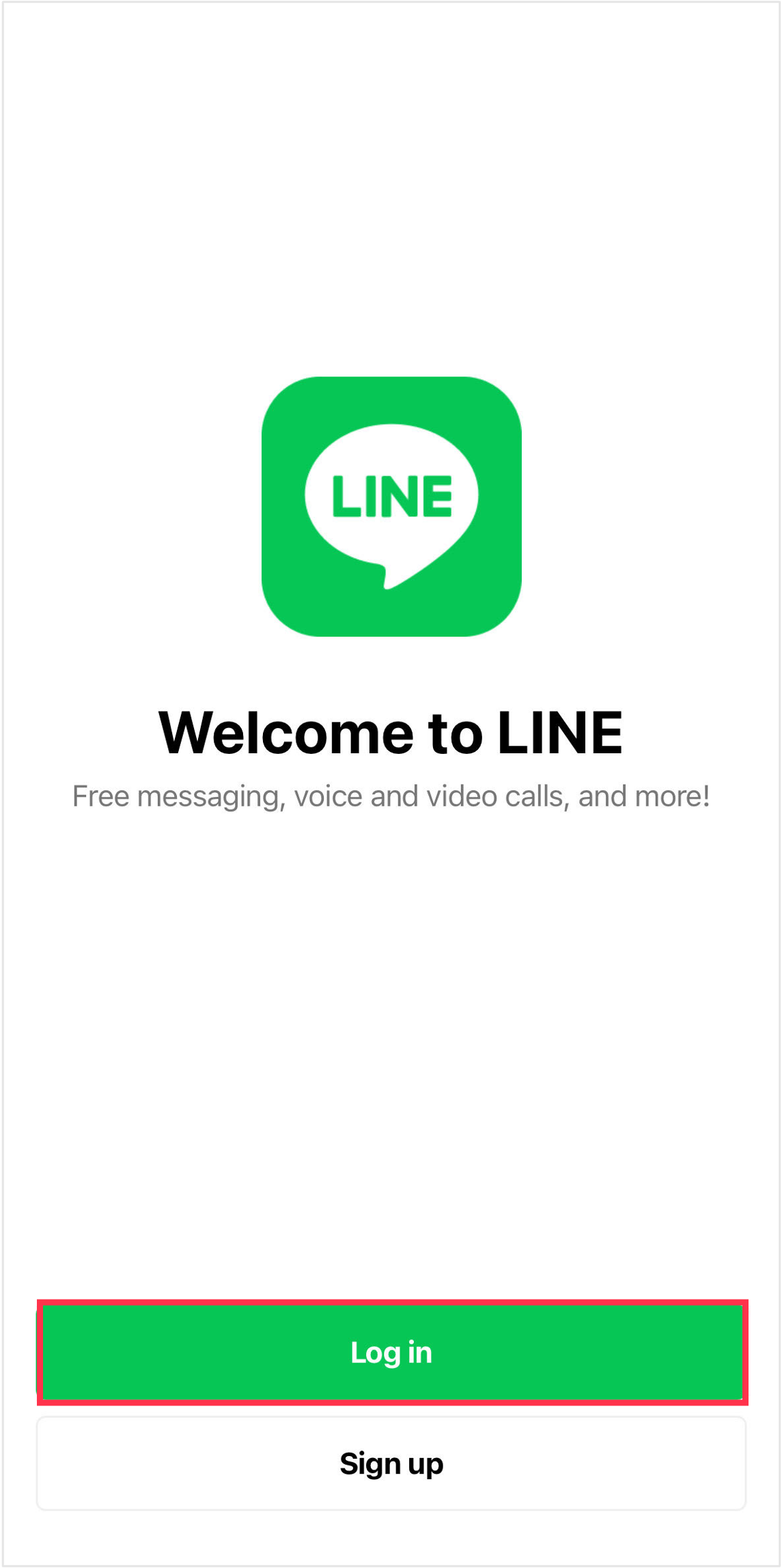
1. Open LINE on your new device
Open LINE on your new device and tap Log in.
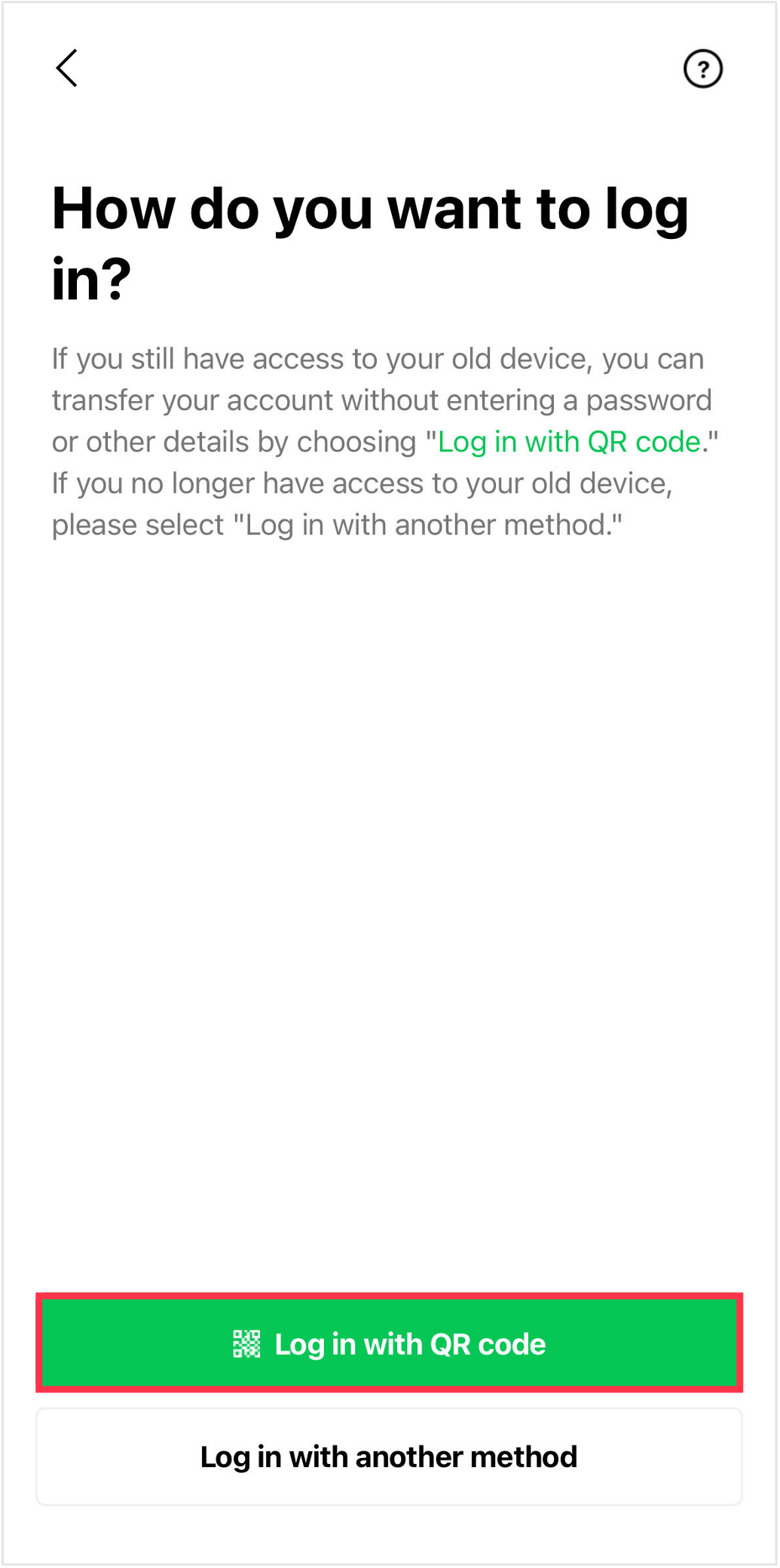
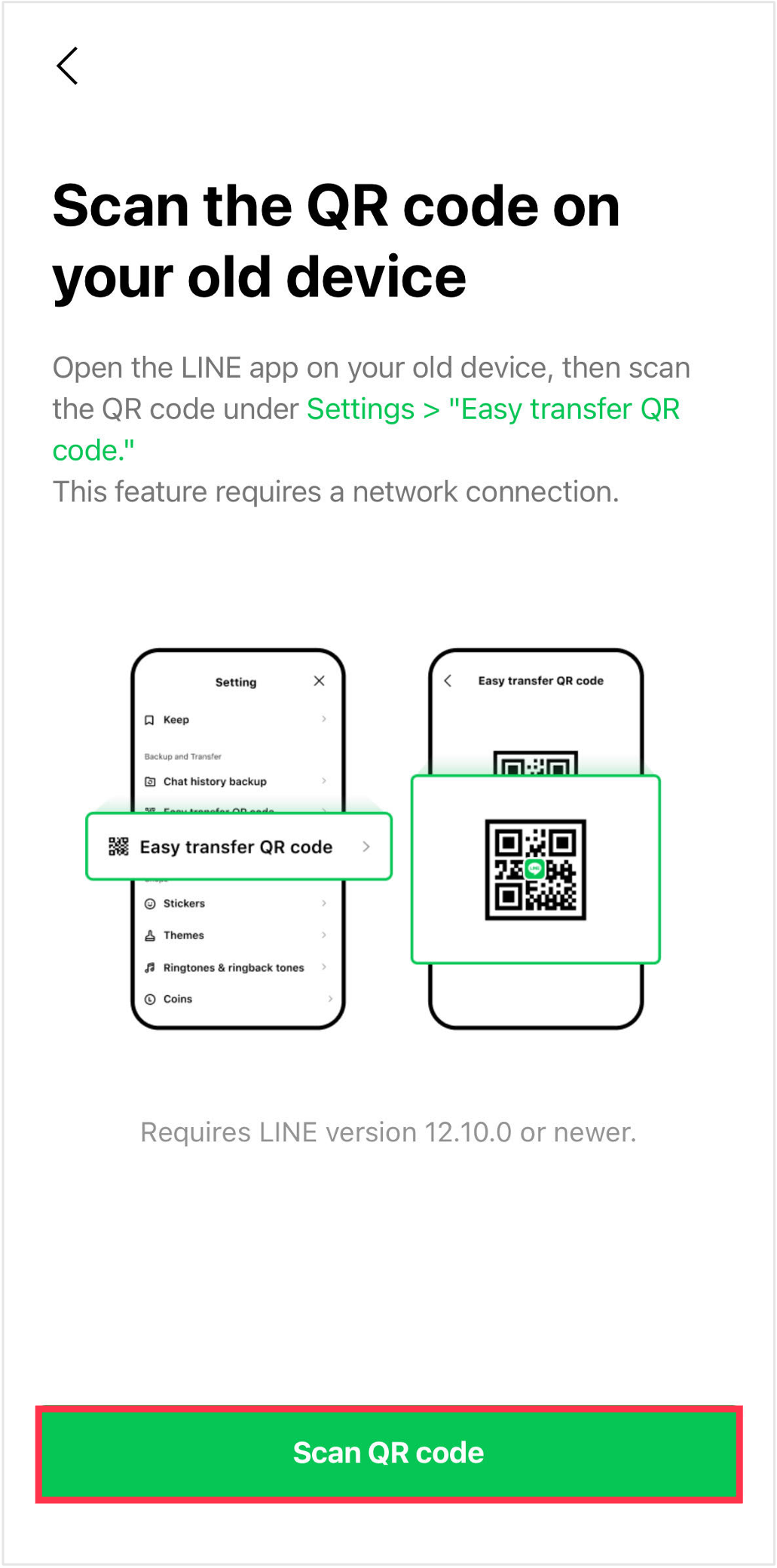
2. Tap Log in with QR Code, then scan it
To transfer your account with a QR code, see the steps below.
From the menu that
appears, tap Log in with QR code > Scan QR code.
Note: We recommend transferring your
account with a QR code because it allows you to skip entering your password or PIN code in
the later steps.
3. Display your QR code on your previous device
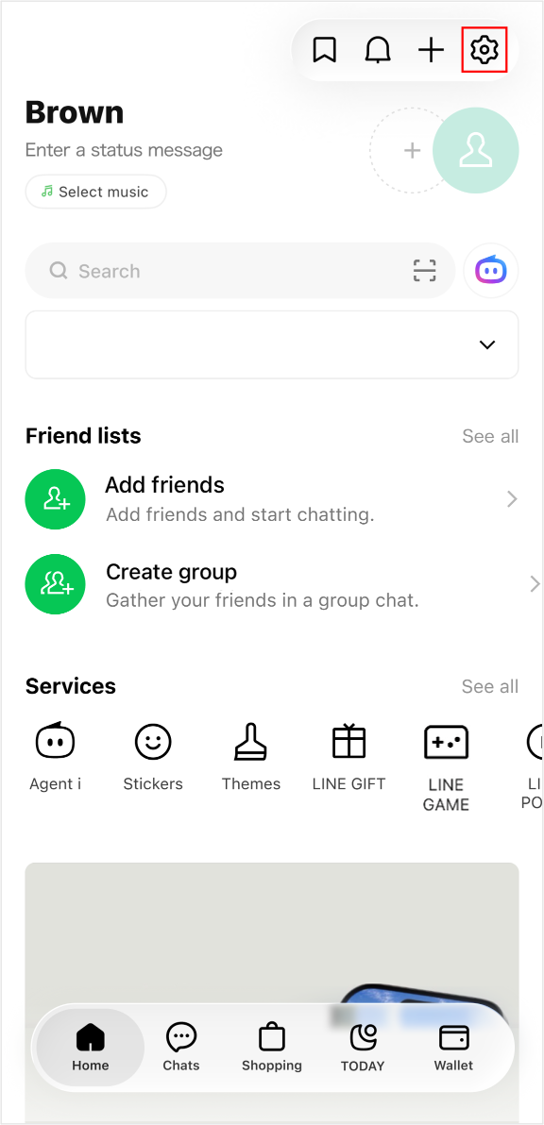
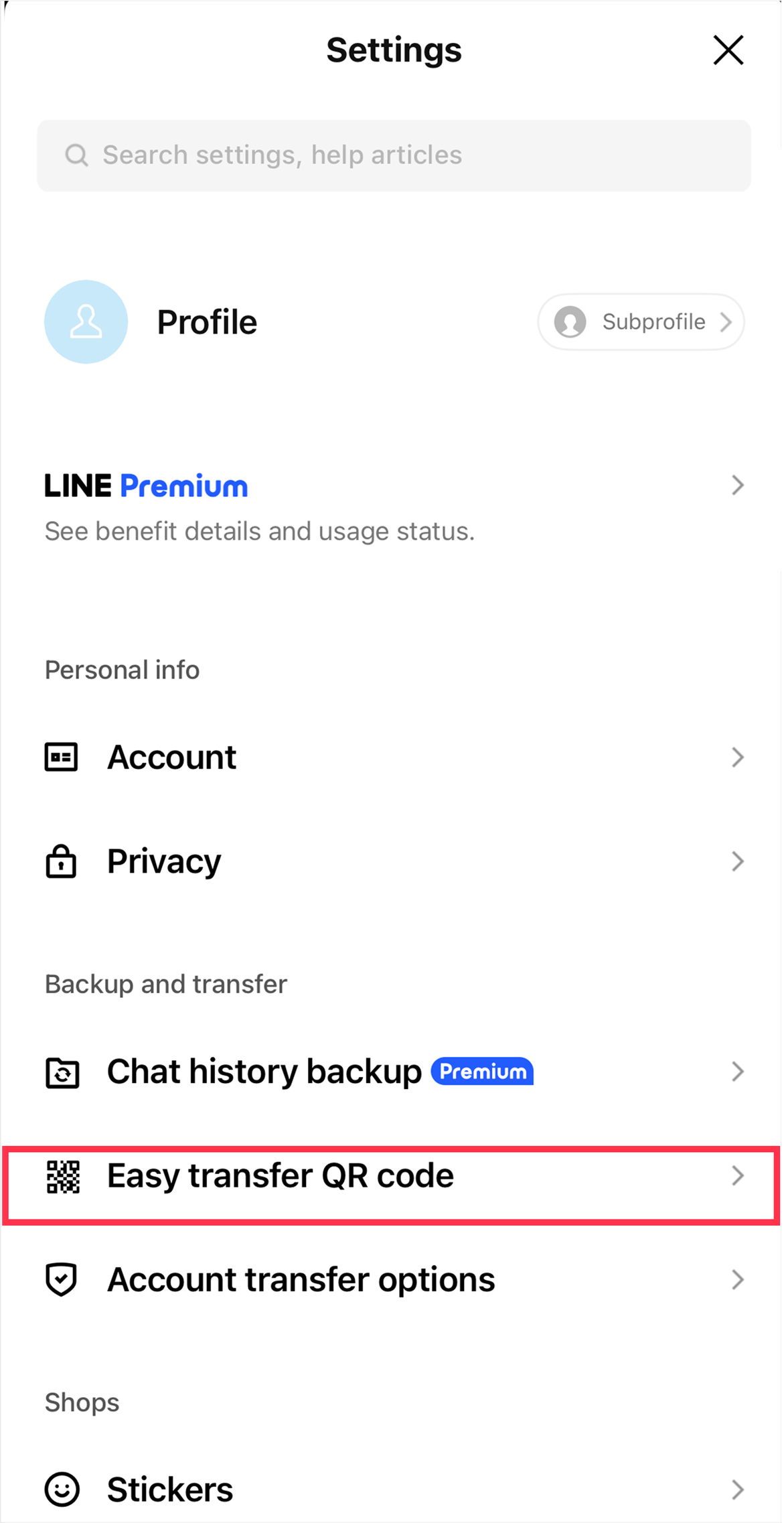
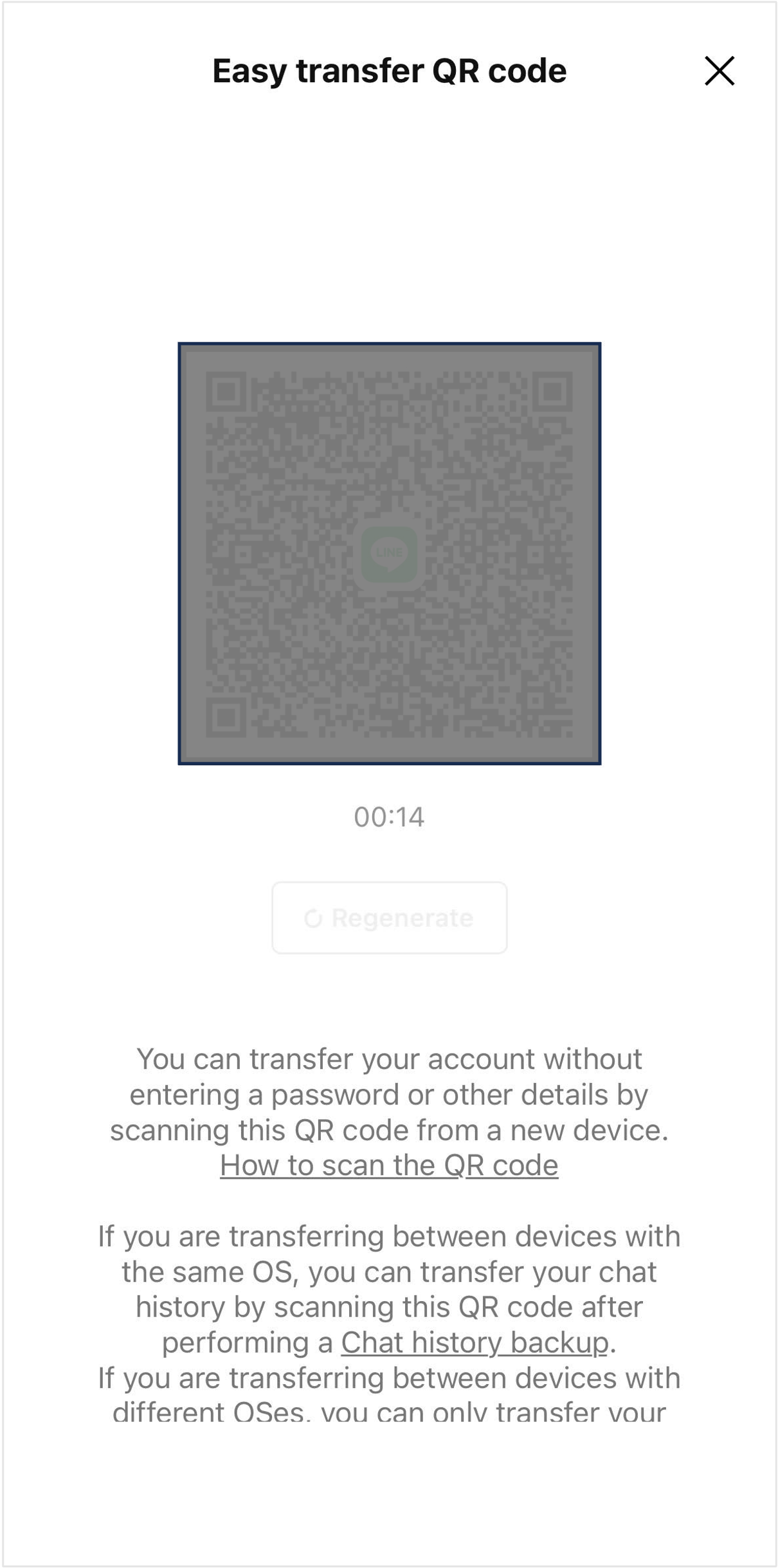
Open LINE on your previous device, and tap the Home tab >
 > Easy transfer QR
code to display your QR code.
> Easy transfer QR
code to display your QR code.
Note:
- You cannot back up your data after this step.
- If a QR code isn't shown, check if LINE has been updated to the latest
version.
4. Scan the QR code with your new device
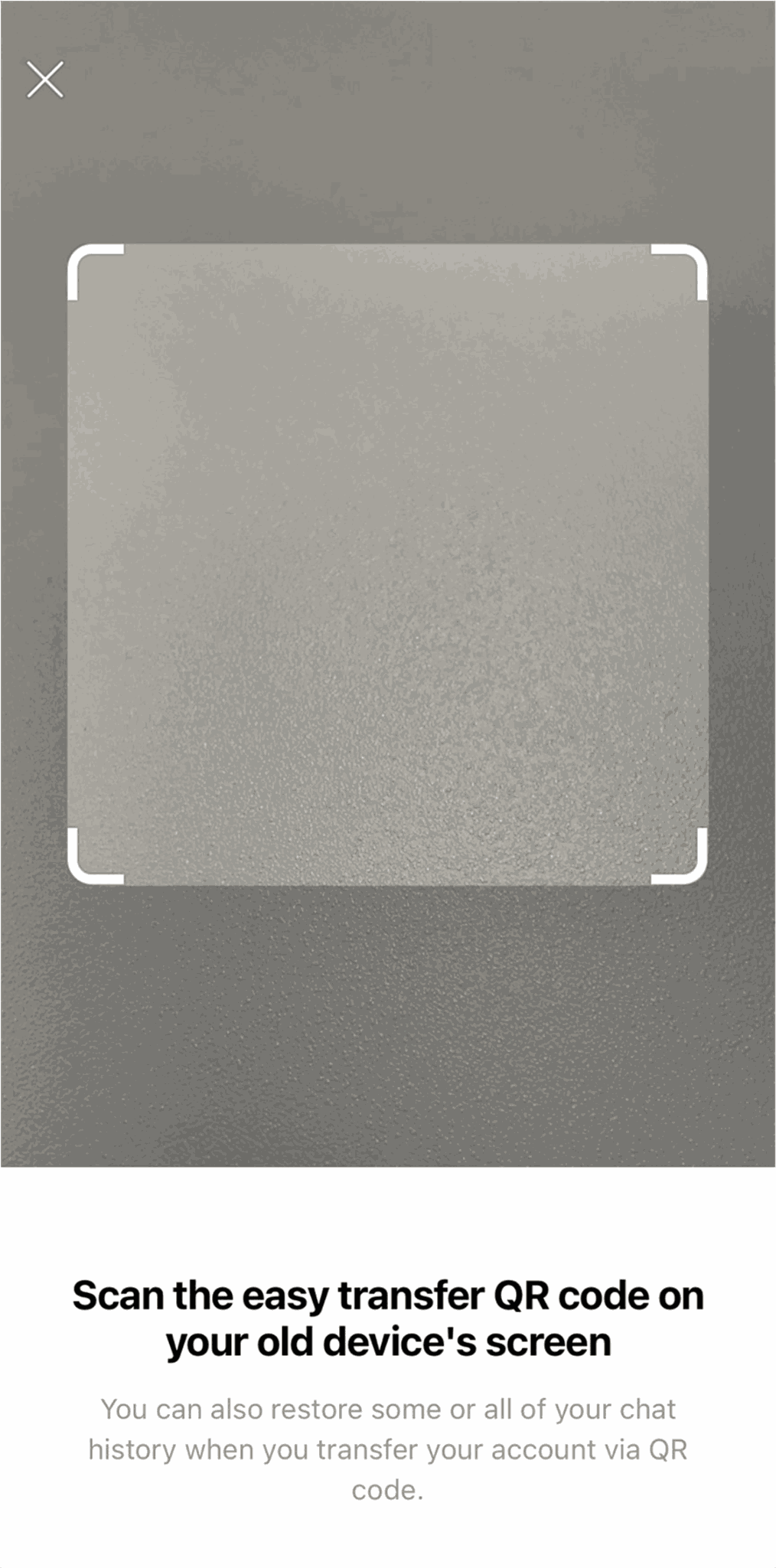
Scan the easy transfer QR code you displayed on your previous device with your new device.
5. Verify your identity with your previous device
After you scan the QR code, the message "Did you just scan this QR code?" will appear on your
previous device.
If you were the one who scanned it, check Yes, I scanned the QR code myself, then tap Continue.
After that, verify your identity with the
method you use to unlock your lock screen (e.g. facial recognition, fingerprint recognition,
passcode).

6. Log in on your new device
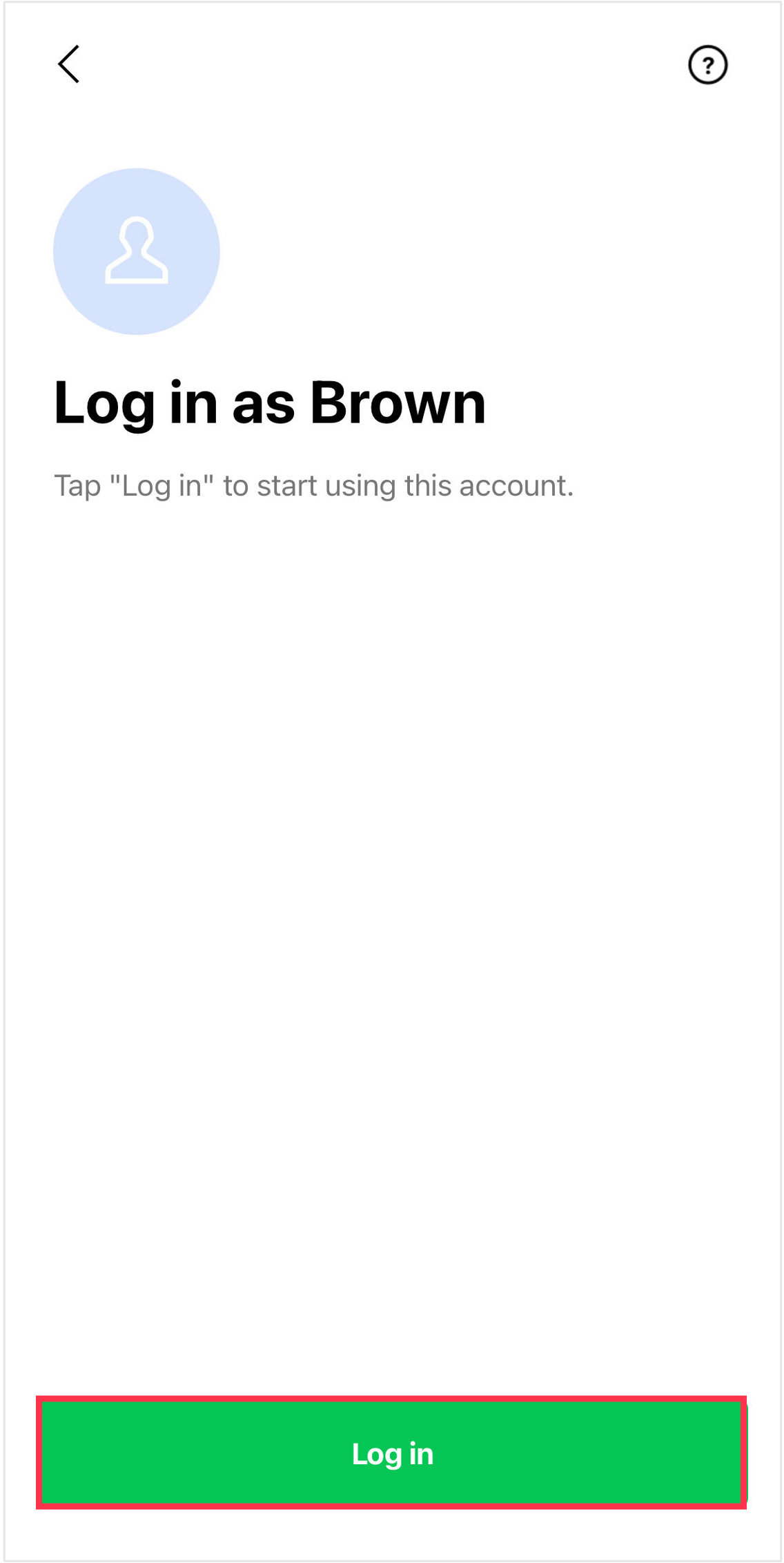
Tap Log in on your new device.
Note: When you tap
Log in on your new device, your account will be deleted from
your previous device.
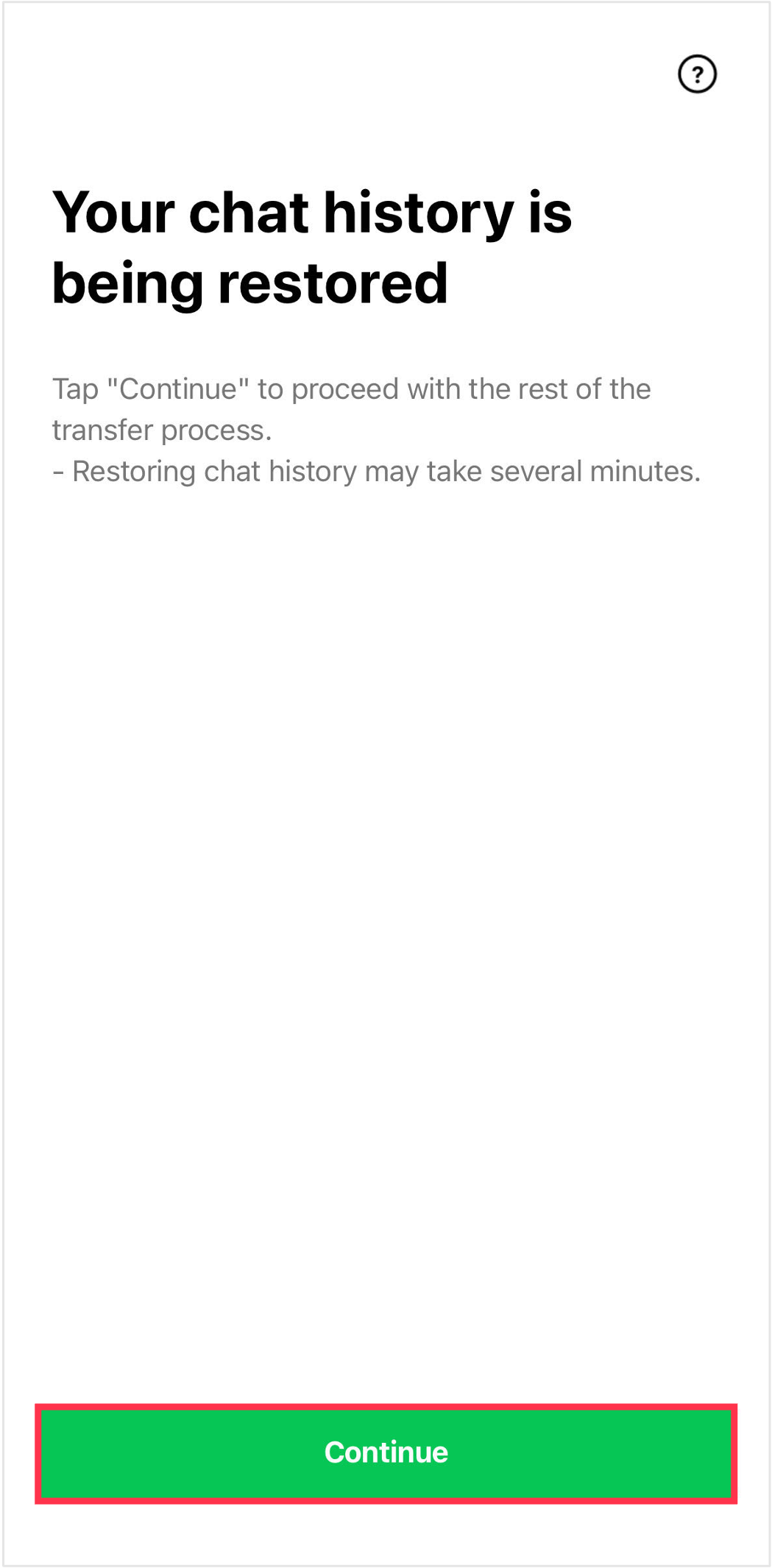
7. Restore your chat history
Confirm the details shown, then tap Continue to restore your
chat history.
Please be aware that once you tap Continue, LINE will become unavailable on your previous device.
8. Proceed through each step to transfer your account
Proceed through each step while following the onscreen guidance shown on your new
device.
When you see the Home screen, your LINE account has been
transferred.
Note: If you're in Hong Kong, Japan, Korea, Taiwan, or Thailand and
you changed your phone number as well as your device, you'll need to manually update
your phone number on the LINE Settings screen after transferring your account.
If you don't have your previous device
How to transfer your account
What you actually see on your smartphone may vary from the contents of this page.
When
transferring your account, please follow what you see on your smartphone.
1. Open LINE on your new device
Open LINE on your new device and tap Log in.
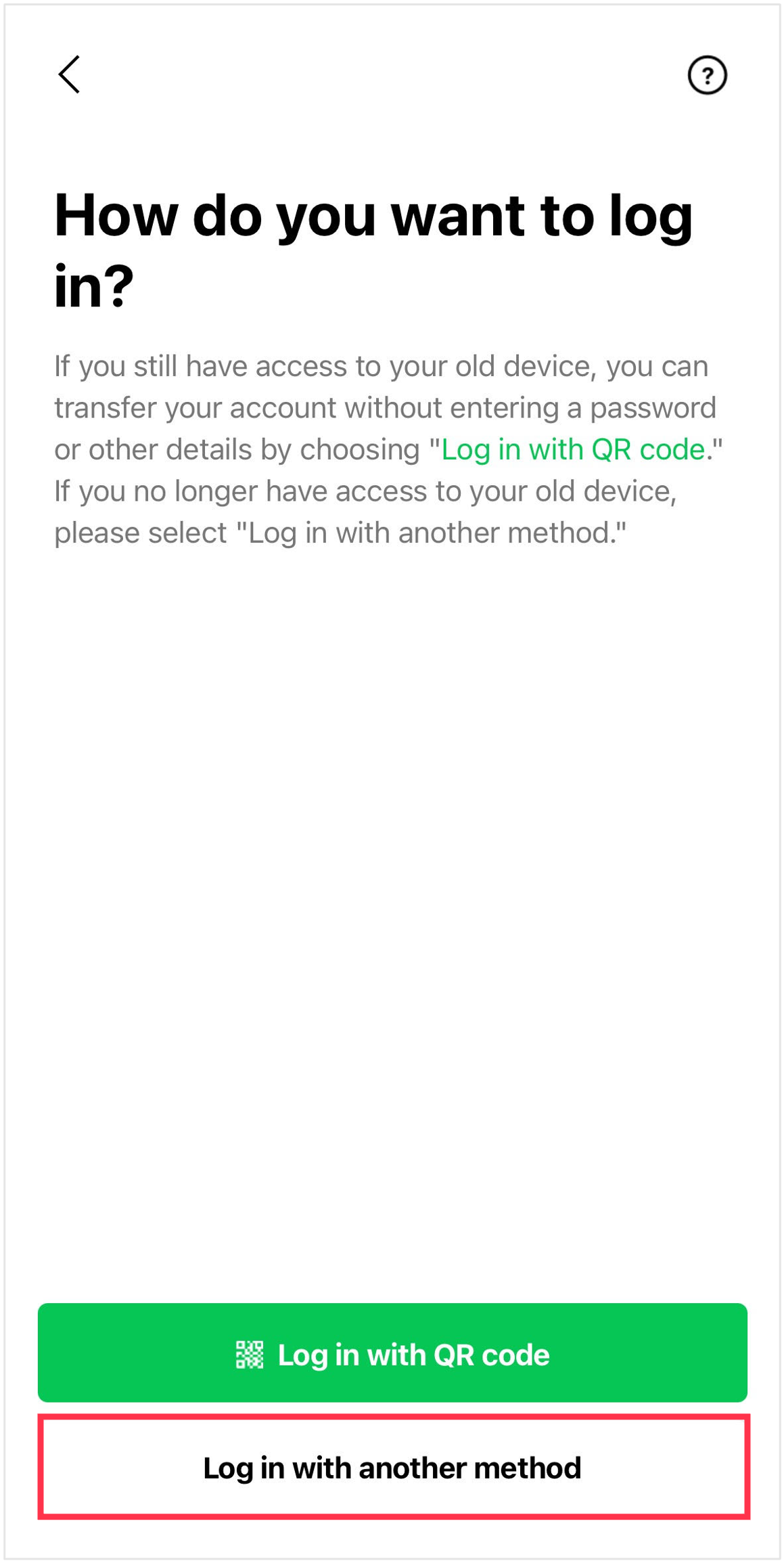
2. Tap Log in with another method
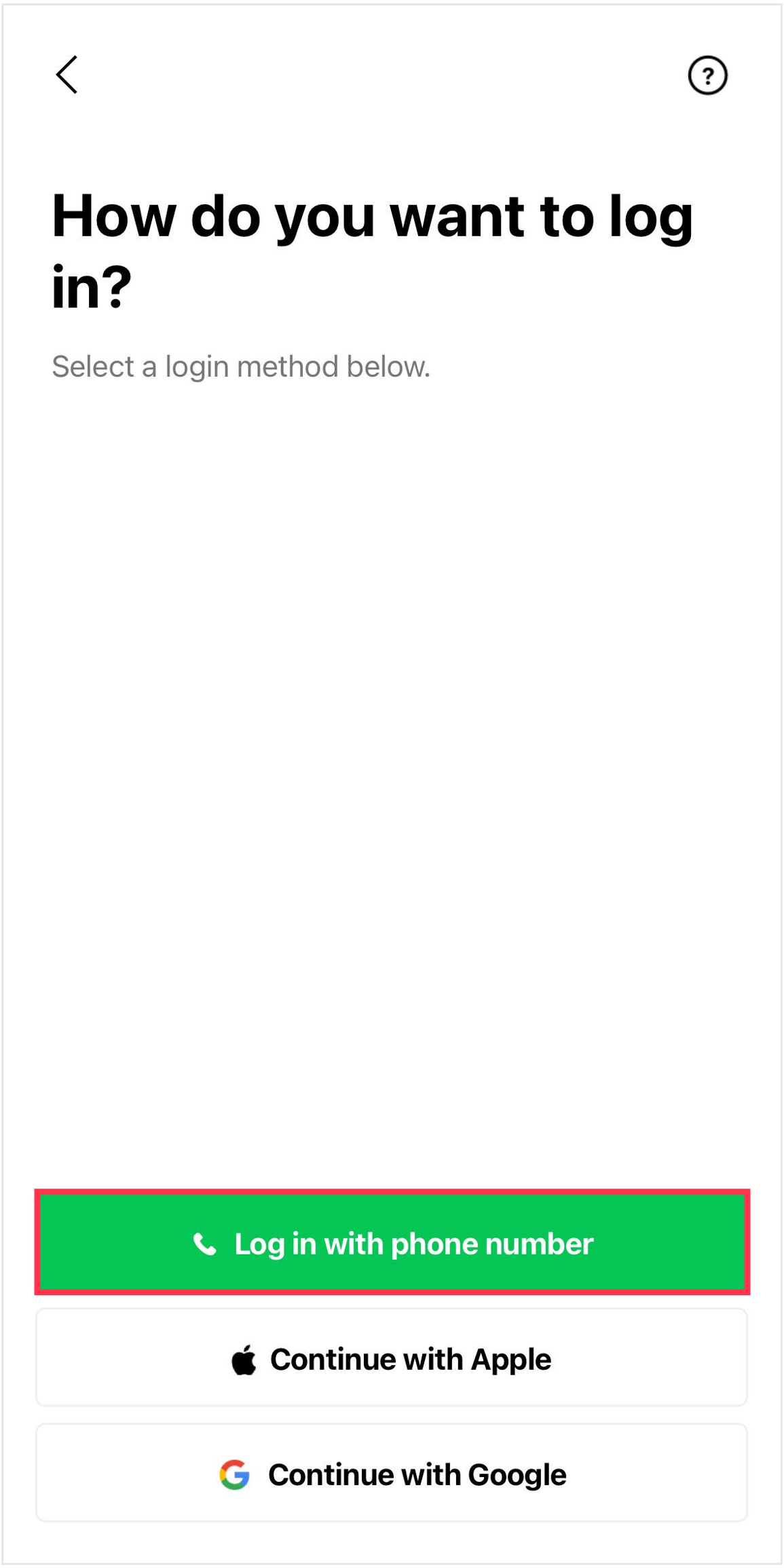
This step explains how to log in with your phone number.
Important: Logging in with a phone number is only available if you're using LINE in Hong Kong, Japan, Korea, Taiwan, or Thailand.
From the menu shown, tap Log in with another method > Log in with phone number.
Note:
- If you are transferring your LINE account with an Apple ID/Google account, see Transferring your
LINE account with your Apple ID/Google account.
- You can no longer use Facebook to log in as
of mid-January 2024.
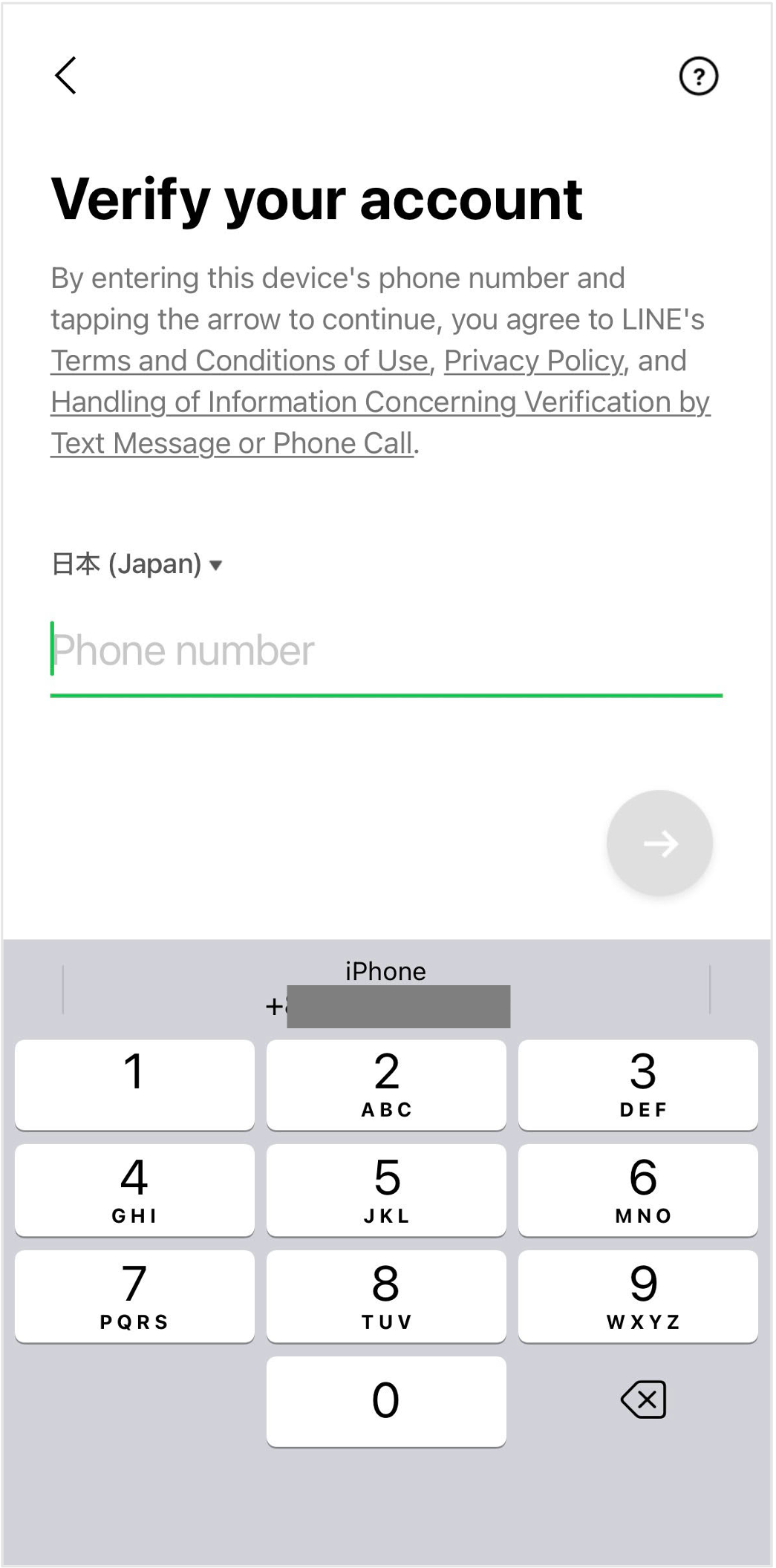
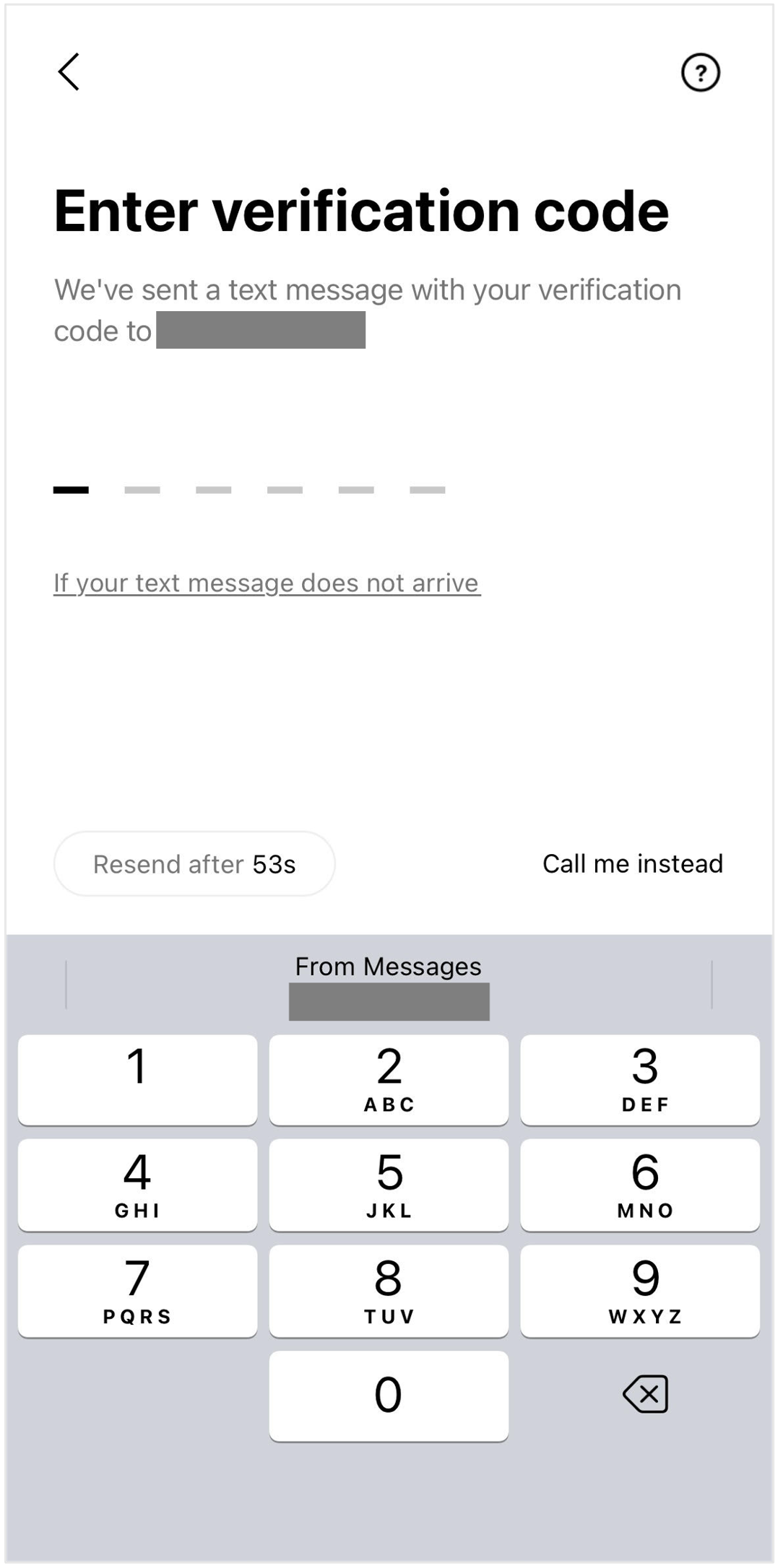
3. Enter your phone number and then enter the code you receive via text message
Enter the phone number of your current smartphone (the new device you'll be using) and tap  .
.
Enter the verification code you receive via text
message.
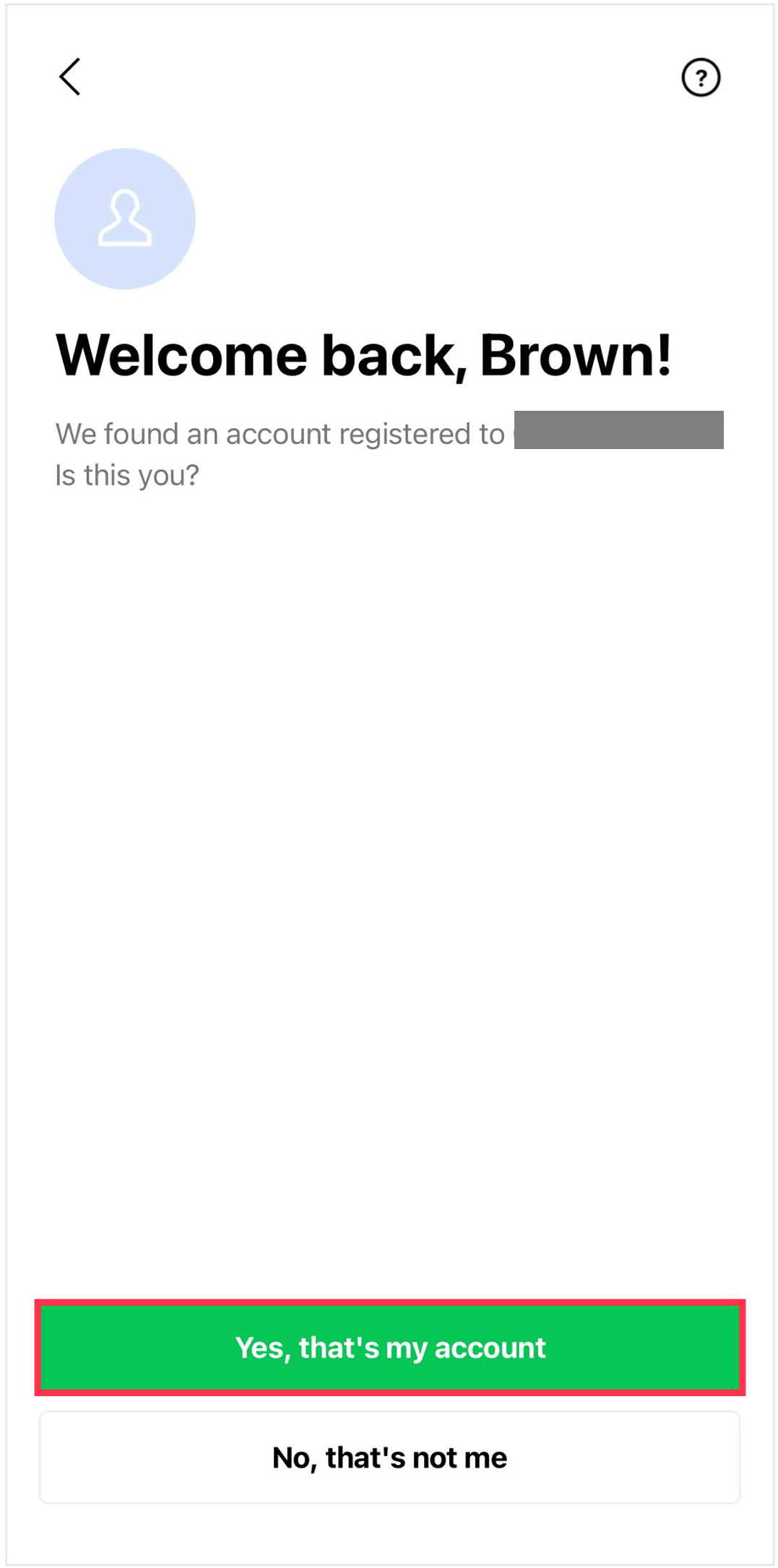
4. Confirm that the information shown is yours
Confirm that the information shown is your correct information.
If your information is
correct, select Yes, that's my account to proceed to the next step.
5. Enter your password
Enter your previously registered LINE password and log in to LINE on your new device.
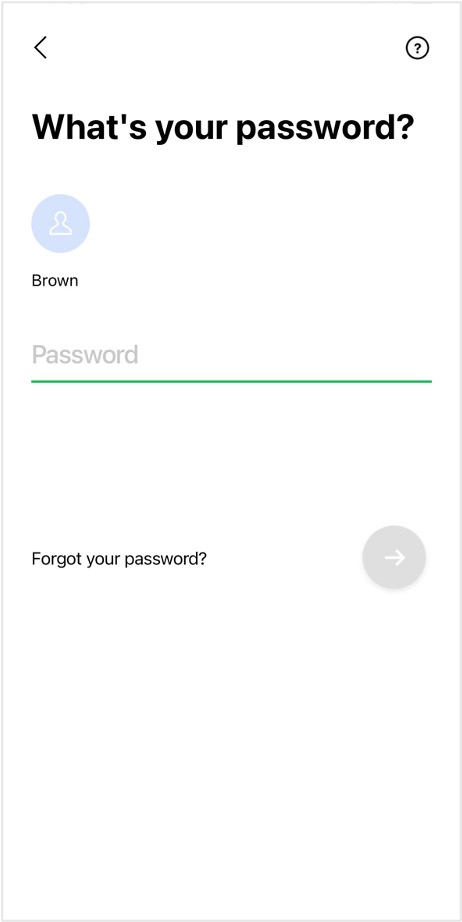
If you forgot your password, please reset it.
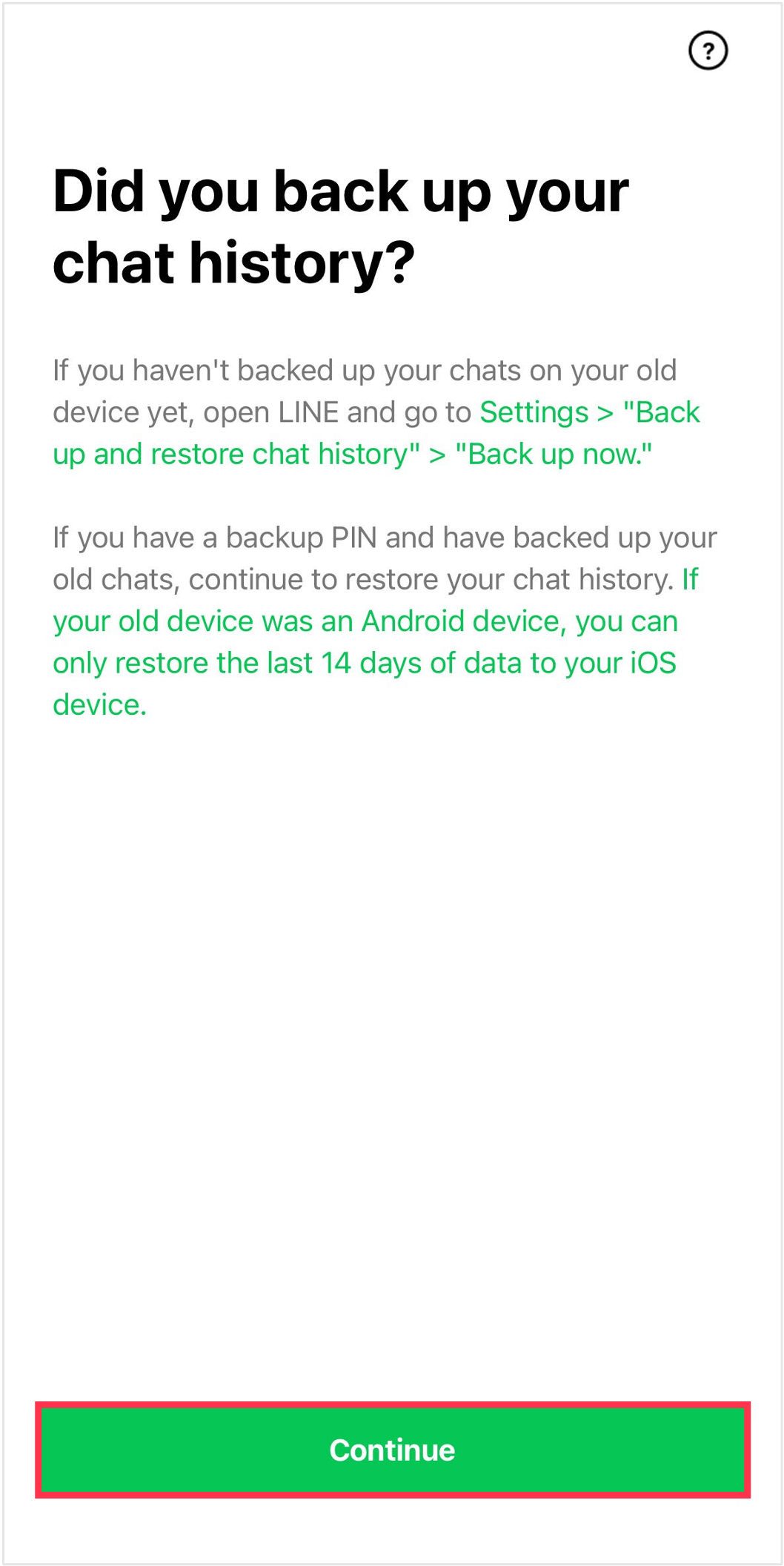
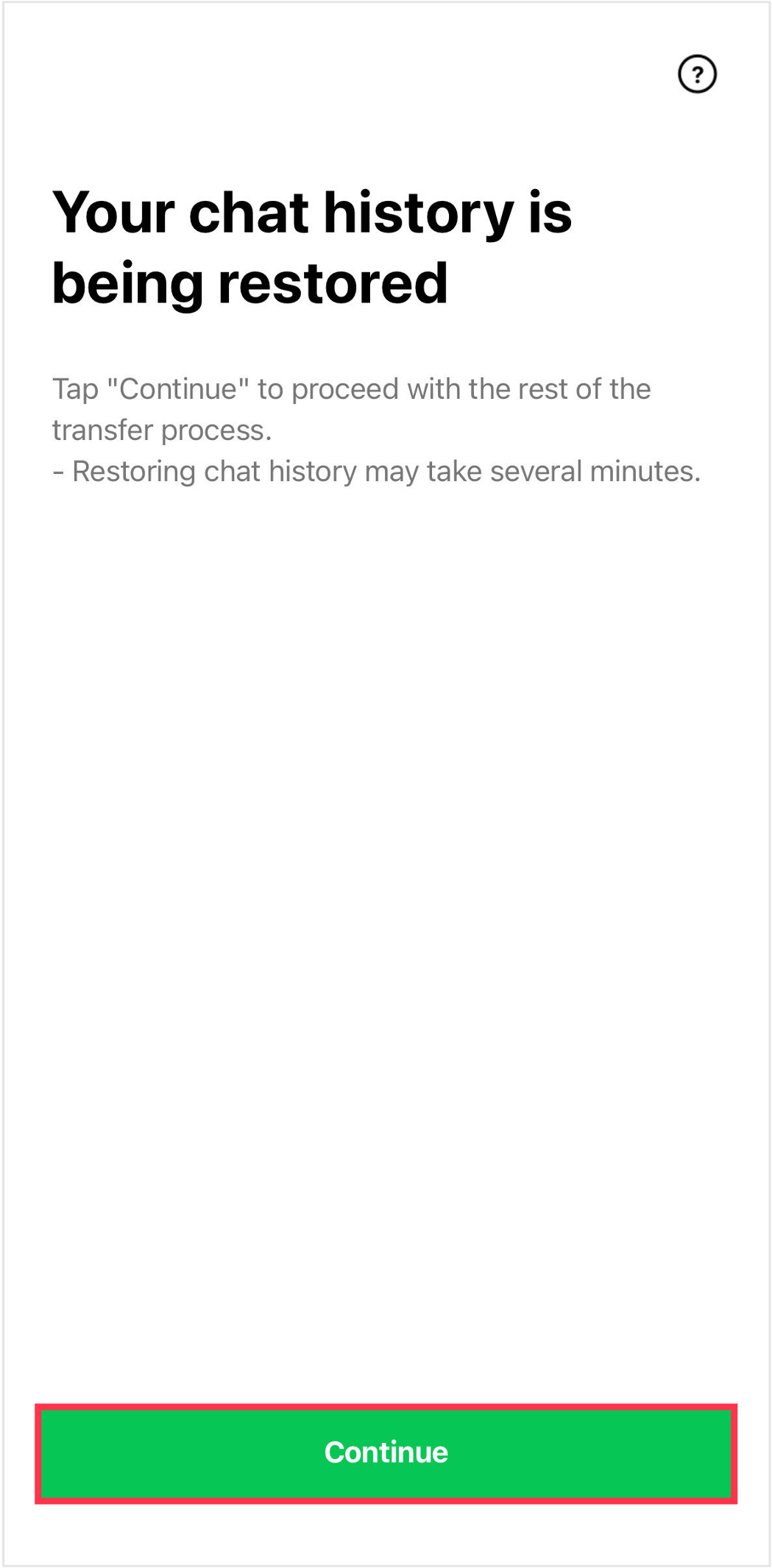
6. Restore your chat history
Confirm the details shown, then tap Continue to restore your chat
history.
Please be aware that once you tap Continue, LINE will
become unavailable on your previous device.
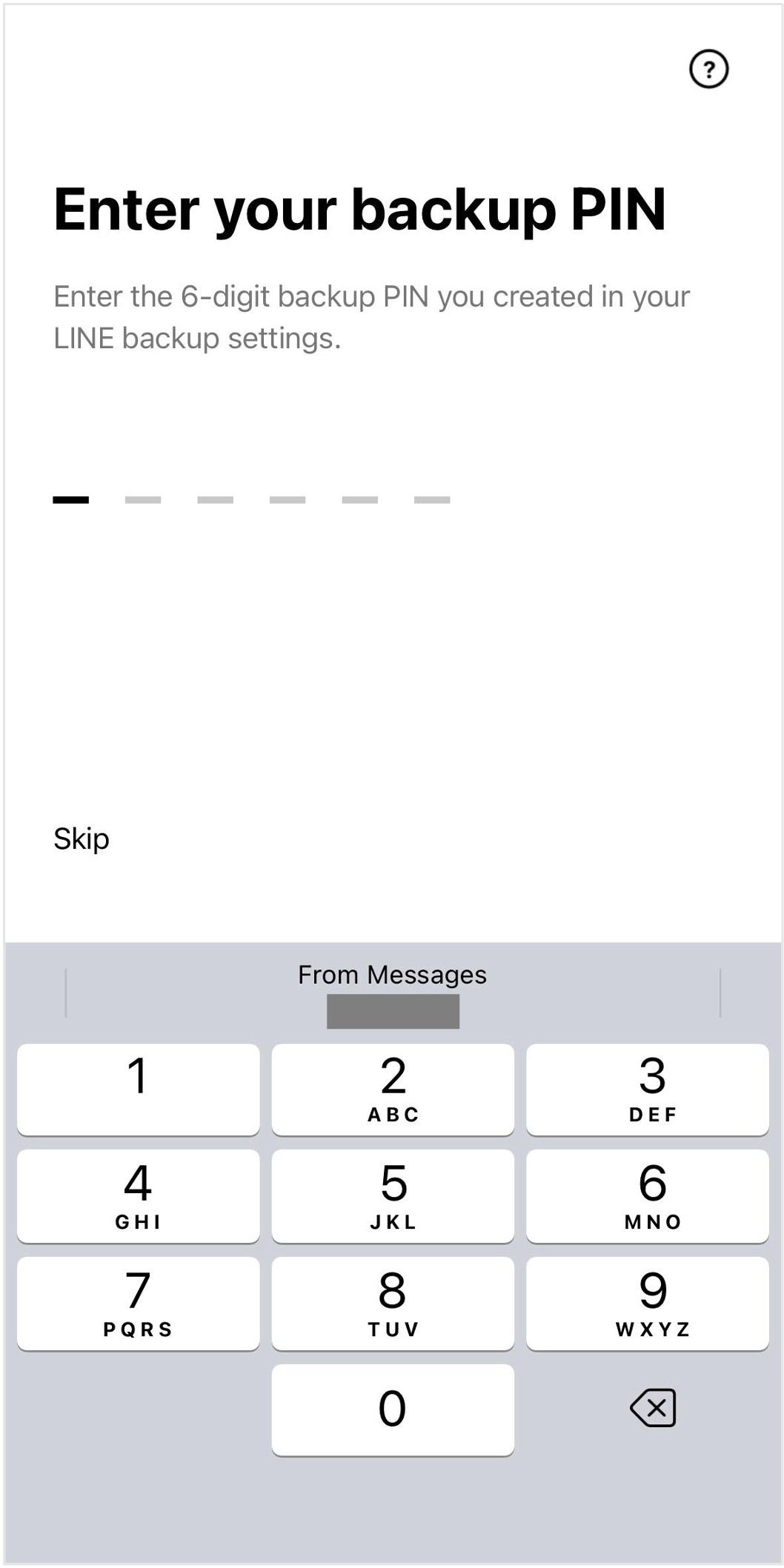
7. Enter your backup PIN
If you set a backup PIN in advance, enter it.
If your PIN is correct, you'll restore the last
14 days of your chat history.
Note: If you didn't previously set a backup PIN, the backup
PIN entry screen won't be shown.
8. Proceed through each step to transfer your account
Proceed through each step while following the onscreen guidance shown on your new device.
When
you see the Home screen, your LINE account has been transferred.